
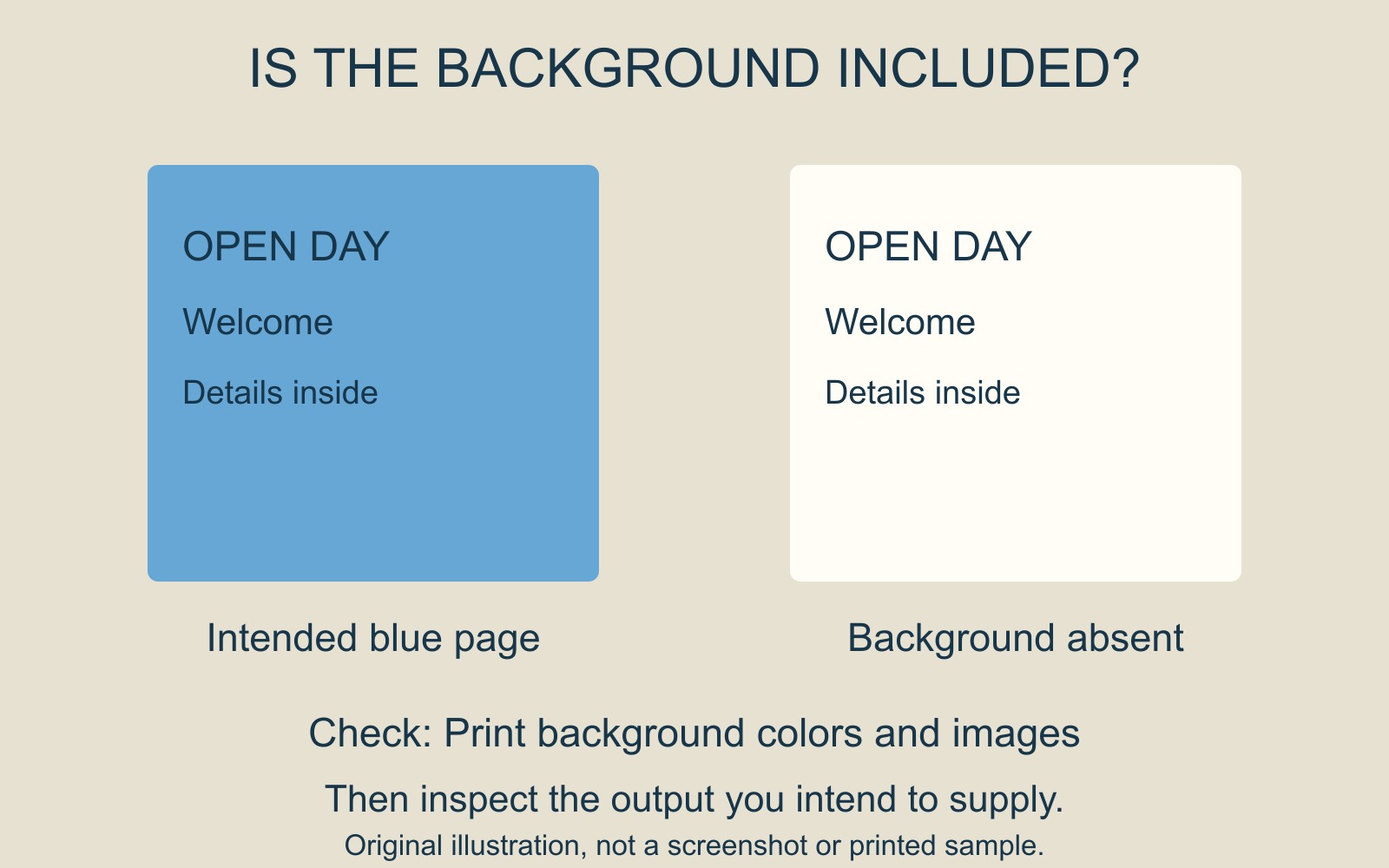
Your Word handout has a blue page background on screen, but the printed sheet is white behind the text. Check Word's background printing option before rebuilding the design or assuming the printer has a colour fault.
Word provides a separate setting for printing background colours and images. A document's on-screen appearance is therefore only part of the output check.
Find the desktop background option
Microsoft's Print background color or image guidance gives these routes for desktop Word:
- Windows: File → Options → Display. Under Printing Options, select Print background colors and images.
- Mac: Word → Preferences → Print, under Output and Sharing. Select Print background colors and images.
Use the route for your application and version. The missing background is a reason to inspect this option; it does not prove that every missing picture or every pale print has the same cause.
Separate “included” from “the right colour”
In the illustration, the blue background is either present or absent. That is the first question. Whether an included blue reproduces as the intended shade is a different approval question.
After changing the setting, inspect the output you intend to supply and check a sample where appropriate to the job. Look at the background, the readability of text over it, and whether the intended design still works on the page. The option does not establish exact colour matching or borderless printing.
Supply the file that represents the agreed result
If you create a PDF for handover, open that exported file and inspect its pages. Do not assume that exporting automatically restores a background that is missing from the intended output. If you supply the Word document instead, explain that the page background is part of the design and identify the final version.
For a document printing or binding enquiry, include the file and describe whether the background should be printed. A short note such as “Blue background intended on every page” makes the requirement clearer than relying on how the document looked on your screen.
Source: Microsoft's desktop Word instructions are linked beside the setting paths. The page comparison is an original illustration, not a Word screenshot or a printed sample.