A grey-and-white checkerboard often means “transparent here” inside an image editor. But a picture of that checkerboard is still a picture. If the squares were saved as image content, placing the file on a coloured layout will bring them along.
That distinction matters when a logo is destined for a flyer, sign or garment mock-up. The filename ending in PNG does not settle whether the background is genuinely see-through.
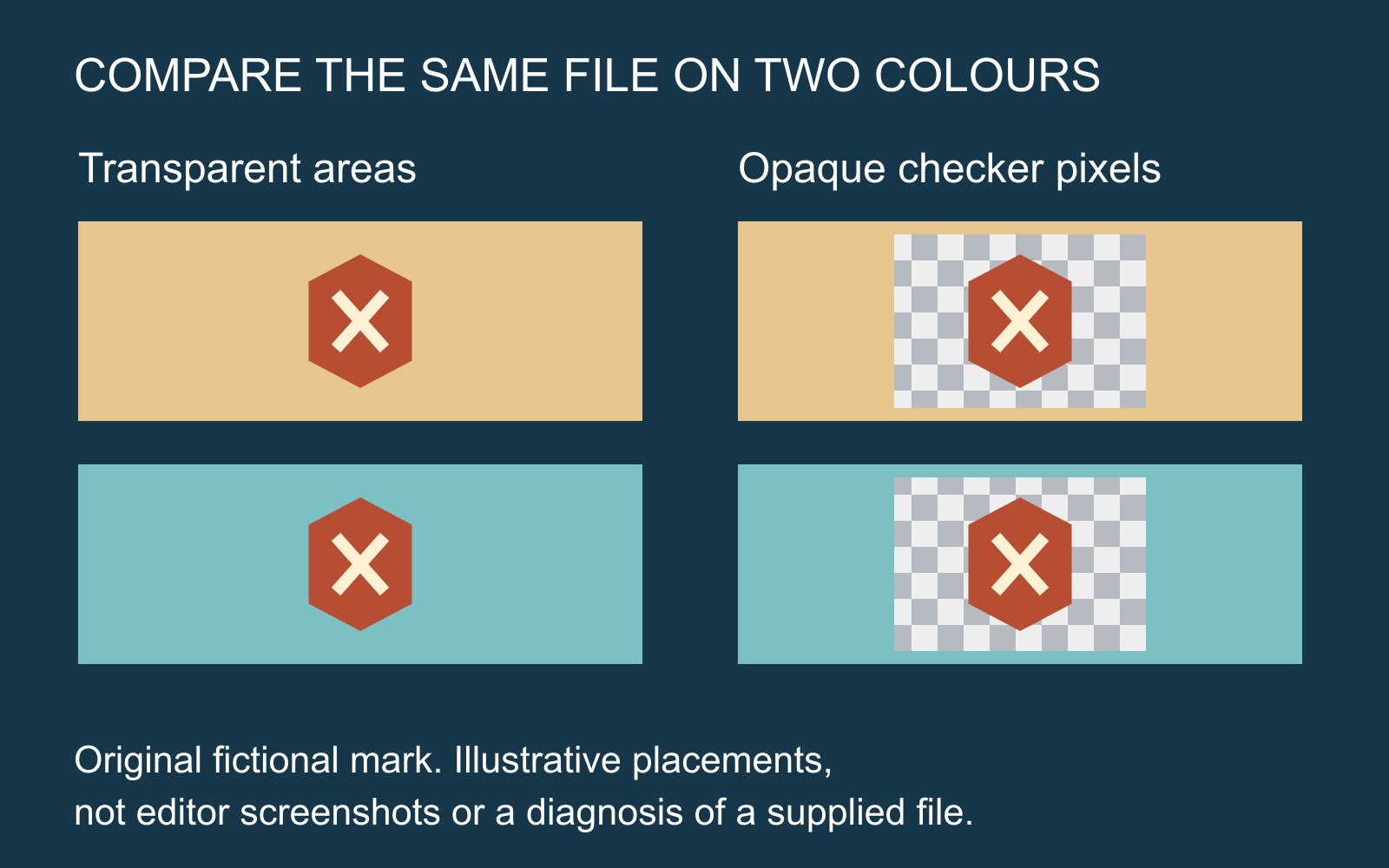
Two things can look alike in a preview
Adobe’s Photoshop transparency preferences let users change the grid’s size and colours. That checkerboard belongs to the editor’s display: it helps reveal transparent areas.
A different situation is documented in Photopea’s explanation of fake transparent backgrounds: some files contain the white-and-grey pattern itself, including PNG files without true transparency. The pattern then belongs to the artwork rather than the editor.
A screenshot of a logo over a transparency grid can therefore be a poor substitute for the exported logo. It shows what was visible on screen without establishing what the original file contained.
Compare the placed file on two solid backgrounds
Keep your original unchanged. In a layout or editor that supports transparent images, place a copy over a plain dark background, then a different plain colour. Use the actual image file, not a screenshot of its preview.
Where the image is transparent, the colour underneath can show through. Where squares are opaque picture content, those squares remain. Photopea’s layer explanation describes transparent, partly transparent and opaque pixels, and how layers appear over one another.
The comparison is a useful clue, not a complete production assessment. A file may contain both transparent areas and unwanted opaque patches. Check the small spaces inside letters and around fine edges as well as the large surrounding rectangle.
If you cannot make that comparison confidently, send the file with a reference showing the problem. State where the squares appear: only in an editor, in a placed layout, or in a supplied proof. Those are more useful observations than “the PNG is broken”.
Return to the source before removing pieces
Look for the original artwork or an export supplied by the designer. Simply saving the same pixels under another filename does not separate an unwanted pattern from the logo.
Background removal also needs judgement. A grey area might be part of the mark, and a small white shape might be intentional. Agree what must remain before accepting an altered version; compare the replacement with the approved identity.
For a print project using the logo, supply the best available source, the intended item and its background colour. Include the problematic copy as a labelled reference rather than making it the only master.
Genuine transparency answers the background question. It does not, by itself, establish sharpness at the intended size or suitability for a particular production method.
Sources: Adobe’s transparency-display guidance and Photopea’s fake-background and layer explanations, linked beside the relevant points. Illustrations are original explanatory artwork; no customer logo or software test result is shown.