A word reaches the right edge of a handout, gains a hyphen and continues on the next line. Before correcting its spelling, check whether Word is applying automatic hyphenation. The layout decision and the approved wording need separate attention.
Identify the kind of split
Microsoft distinguishes automatic hyphenation from manual suggestions. In desktop Word for Windows, the automatic setting is under Layout > Hyphenation > Automatic. Its purpose is to divide words at line ends. A typed hyphen in a name or compound word needs a different decision: changing the layout setting does not establish whether that punctuation belongs in the text. See Microsoft's hyphenation instructions.
Mark the affected paragraph in the working document and keep an unchanged copy. Compare its wording with the approved text. Avoid deleting punctuation throughout the document just because one line ending looks awkward.
Make a paragraph exception
If the document may use automatic hyphenation but this passage should not, Microsoft provides a text exception. Select the affected text, open the Paragraph dialog from the Home tab, choose Line and Page Breaks, then select Don't hyphenate under Formatting exceptions. These are Microsoft's Windows desktop instructions; locate the corresponding control for your Word version.
This gives the brief a useful boundary: keep this passage unhyphenated. It avoids making an unrelated change to the type size or page margins before the cause is understood.
Review the new line endings
After changing the setting, inspect the paragraph and the pages around it. Check headings, page endings and any text near pictures. Review the final PDF as well as the editable document; an earlier export cannot demonstrate the effect of a later change.
Send the intended final file for photocopying, binding or cutting, with a note identifying the passage that should remain unhyphenated. A clear file version and a marked location make that instruction easier to follow than “fix the spacing”.
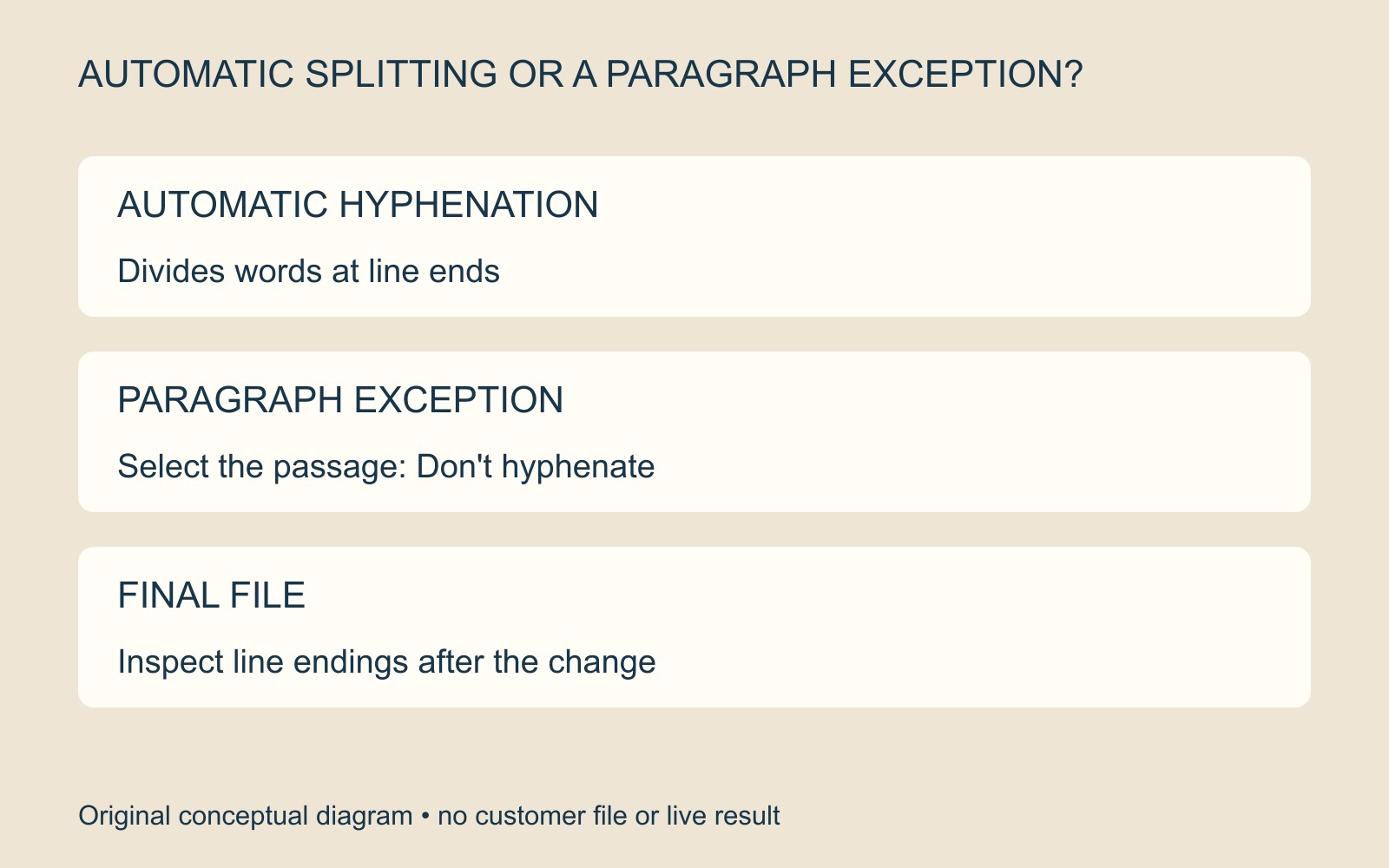
The original diagram illustrates the decision. It is not a Word screenshot or a tested customer document.