A white heading can look right in one PDF view and vanish in another because it has been set to overprint. Before changing fonts, exporting screenshots or rebuilding the page, ask for the white object’s overprint settings to be checked.
That is a possible cause, not a diagnosis from appearance alone. This guide concerns ordinary process-colour artwork intended for white paper. A job using a separate white ink needs its own production instructions.
White on a screen is not always a layer of white ink
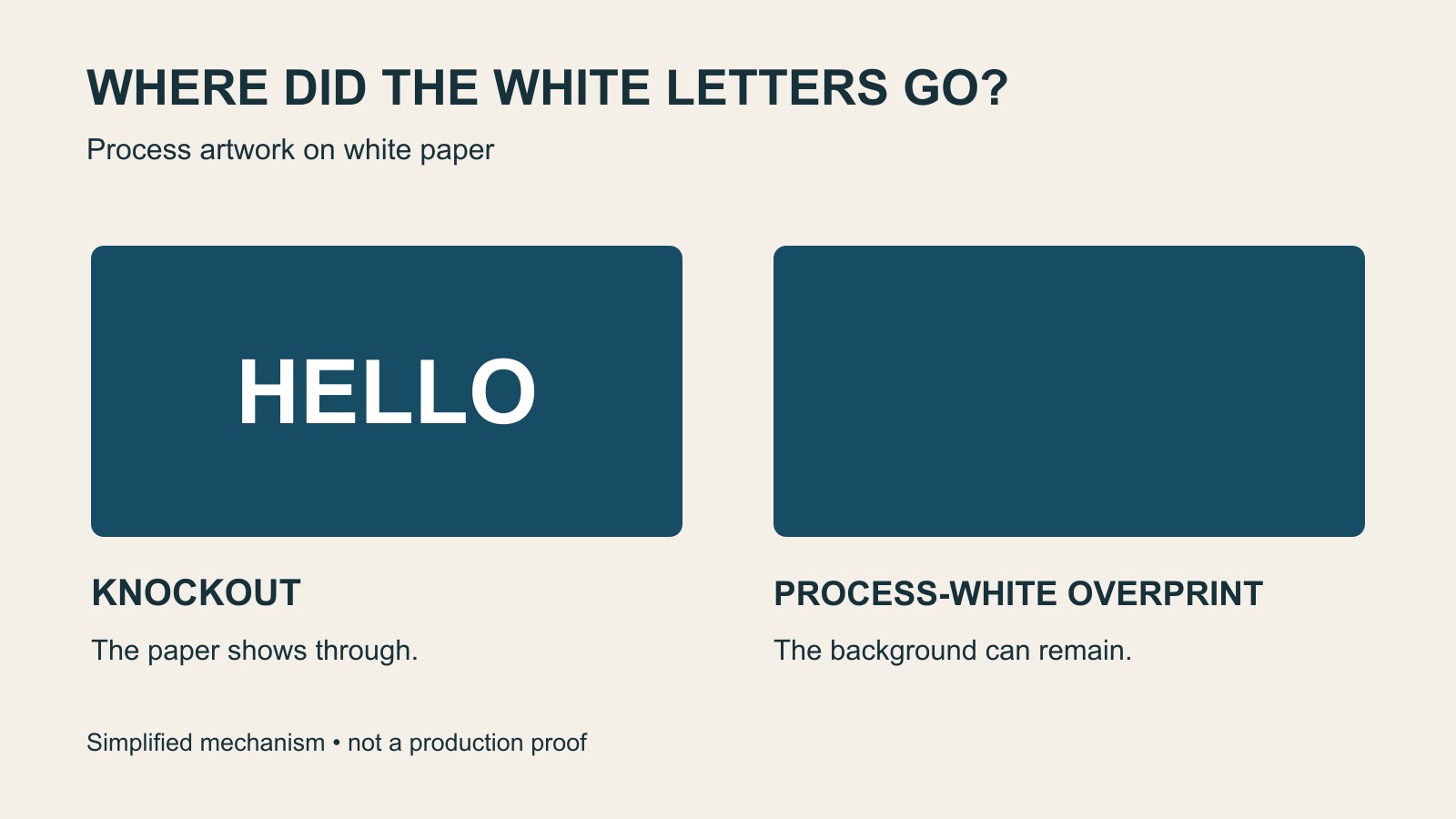
Imagine a white word inside a dark rectangle. In ordinary process printing on white paper, the word can be made by leaving its shape clear of the surrounding colour. The paper supplies the white.
Overprint changes how overlapping objects interact: the underlying colour is retained instead of being knocked out. Put that instruction on a process-white object and the intended clear shape can be lost. Adobe explains the distinction in its guide to overprinting and knockout behaviour.
The useful question is therefore not simply “Is the text white?” It is “Does this white object make the intended opening in the colour underneath?” A colour swatch and an output instruction answer different questions.
How the setting can arrive unnoticed
A designer does not have to choose overprint deliberately for every affected object. Adobe documents cases where an object inherits appearance attributes, or an overprinting coloured object is changed to white. Its white-overprint guidance also describes output suppression in Illustrator. That protection affects output or saved files rather than removing the instruction from the source artwork; spot-white objects are treated separately.
This is why “the last export looked fine” is not a complete file history. Keep the editable source, the PDF supplied for production and the approved proof identifiable. If somebody repairs the PDF alone, record which file was changed so that the next export does not quietly replace it.
What to ask the artwork person to check
Give them the page number and the exact missing element: “Page two, white booking heading inside the blue panel.” Include the actual PDF rather than only a photograph of the screen. If two viewers show different results, name them and explain what differs.
In Acrobat Pro, Adobe’s current route is All tools → Use print production → Output preview → Simulate Overprinting. The simulation profile should match the intended output. Adobe’s overprint-preview instructions caution that final results depend on the printer, RIP and output settings.
Ask for a comparison of the affected object with simulation enabled and disabled, followed by an explanation of any correction. A screenshot can communicate the symptom. It does not replace the checked production file.
Do not solve a missing word by creating a different problem
Avoid changing every white object or removing every overprint instruction across the document. Some instructions may be intentional. Equally, turning the whole page into an image can hide the editable structure the artwork person needs to investigate.
If the object remains missing after the relevant check, broaden the investigation rather than insisting that overprint must be the cause. State the symptom and let the actual file guide the next step.
For a business printing enquiry, send the PDF, the intended item and the affected page. A useful approval note is specific: the white heading is present in the corrected version, the surrounding artwork is unchanged as intended, and that named version is the one being approved.
Sources: Adobe’s overprint, white-overprint and Acrobat preview documentation, linked beside the relevant explanations. The example is illustrative; it is not a report of a customer job or a physical print test.