Crop marks show where a printed sheet should be trimmed. Bleed is the artwork extending beyond that finished edge. Adding the marks does not create a missing strip of background, photograph or colour.
A PDF can therefore have convincing-looking marks while still lacking the artwork needed outside the trim. Check both things before treating the file as ready.
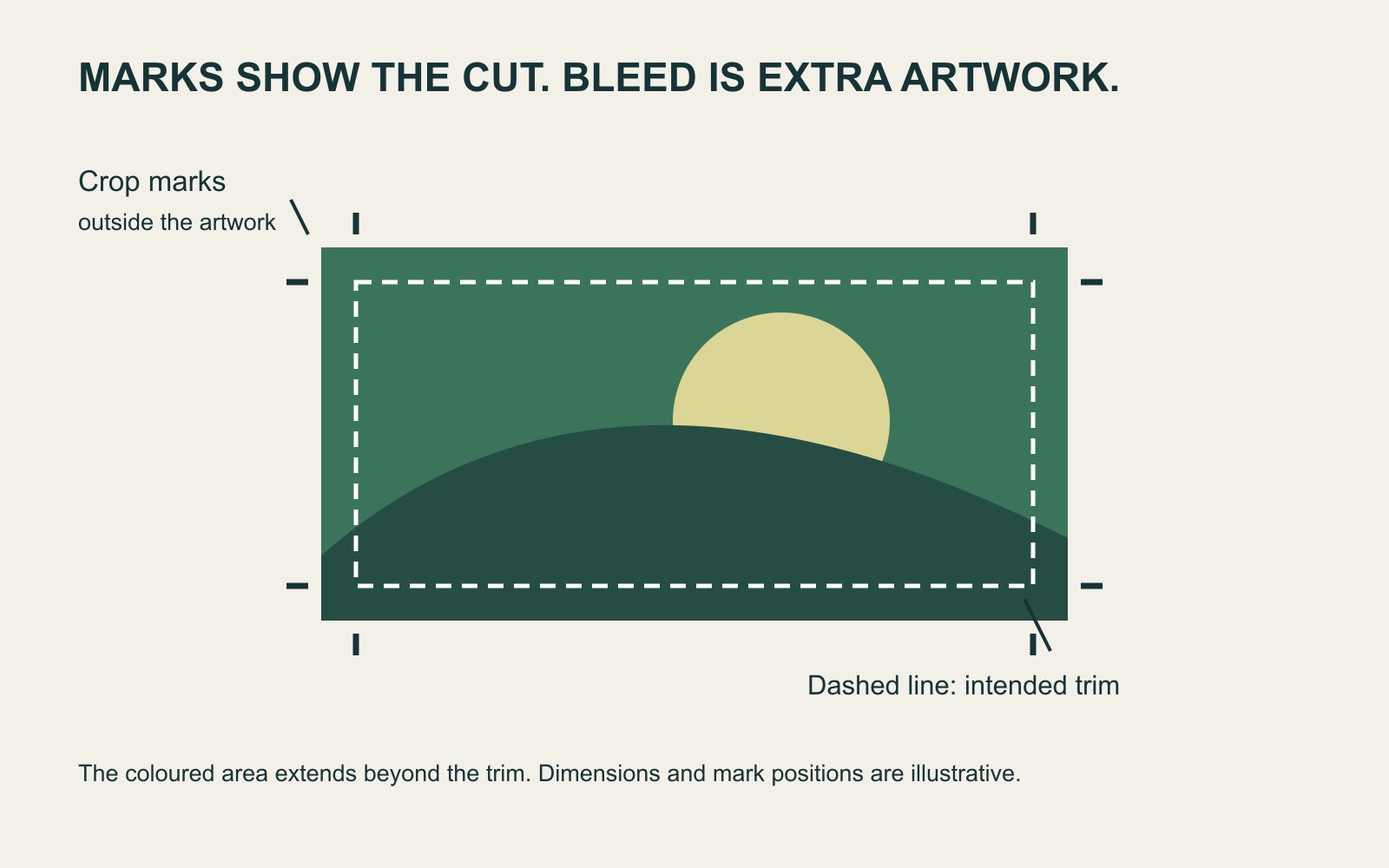
One tells the cutter where. The other supplies extra image.
Imagine a blue invitation intended to be blue right to its edges. The trim position defines the finished rectangle. The blue background continues a little beyond it, into the agreed bleed area, so a small difference in cutting position does not immediately reveal an unprinted edge.
Adobe’s print-bleed tutorial separates these tasks: extend the design beyond the finished size, then include the required output settings. A mark identifies a boundary; it is not additional picture content.
If the blue stops at the finished rectangle, extra white space around the PDF is not blue bleed. Nor does a black line drawn around the page solve the problem.
A size example makes the distinction visible
Take a fictional finished item measuring 90 × 50 mm. If its agreed specification calls for 3 mm of bleed on each side, the artwork including bleed spans 96 × 56 mm: add 6 mm to each overall dimension.
That is an arithmetic example, not a Time for Designs product size or a universal bleed requirement. The PDF’s total outer dimensions may be larger again when printer’s marks or other output areas are included.
The useful questions are separate: What is the finished size? How far does the background actually extend? Which marks does the producer want? A larger PDF page alone does not answer all three.
Check the background and the important content differently
A background intended to reach the edge needs the appropriate extension. A name, date or telephone number needs a safe position inside the finished piece. Bleed is not extra usable space for essential wording.
For a photograph, extending the picture may require a different crop or more of the original image. Do not enlarge the entire layout blindly: that can move the text and change the intended composition. Keep the editable source and discuss a missing edge before approving a guessed repair.
Export settings matter after the artwork is right
Even properly extended artwork must be included in the supplied output. Adobe’s printer-mark instructions treat marks and document bleed as separate controls and advise confirming the required marks with the print provider.
Do not select every available mark because it looks more professional. Ask for the intended export requirements, then check the resulting PDF rather than only the design document’s guides.
For a business printing enquiry, send the file, the finished size and the item being made. Identify any edge where the background stops unexpectedly. “It has crop marks” is one observation; “the artwork extends through the required bleed” is another. A useful file check establishes both where relevant.
Sources: Adobe’s bleed tutorial and printer-mark documentation. Dimensions are a worked example; confirm the actual job specification.