A purple logo can look like one colour and still require several inks. A file can also contain a named spot colour that the chosen printer will reproduce with a process mix. What matters is how the colour is defined in the artwork and how the job will actually be produced.
The short answer: a spot colour specifies a separate ink; a process colour is built from the printing system’s standard inks. Before approving artwork, confirm whether a critical colour will remain a separate ink or be simulated, and what reference will be used to judge it.
One colour to the eye is not necessarily one ink
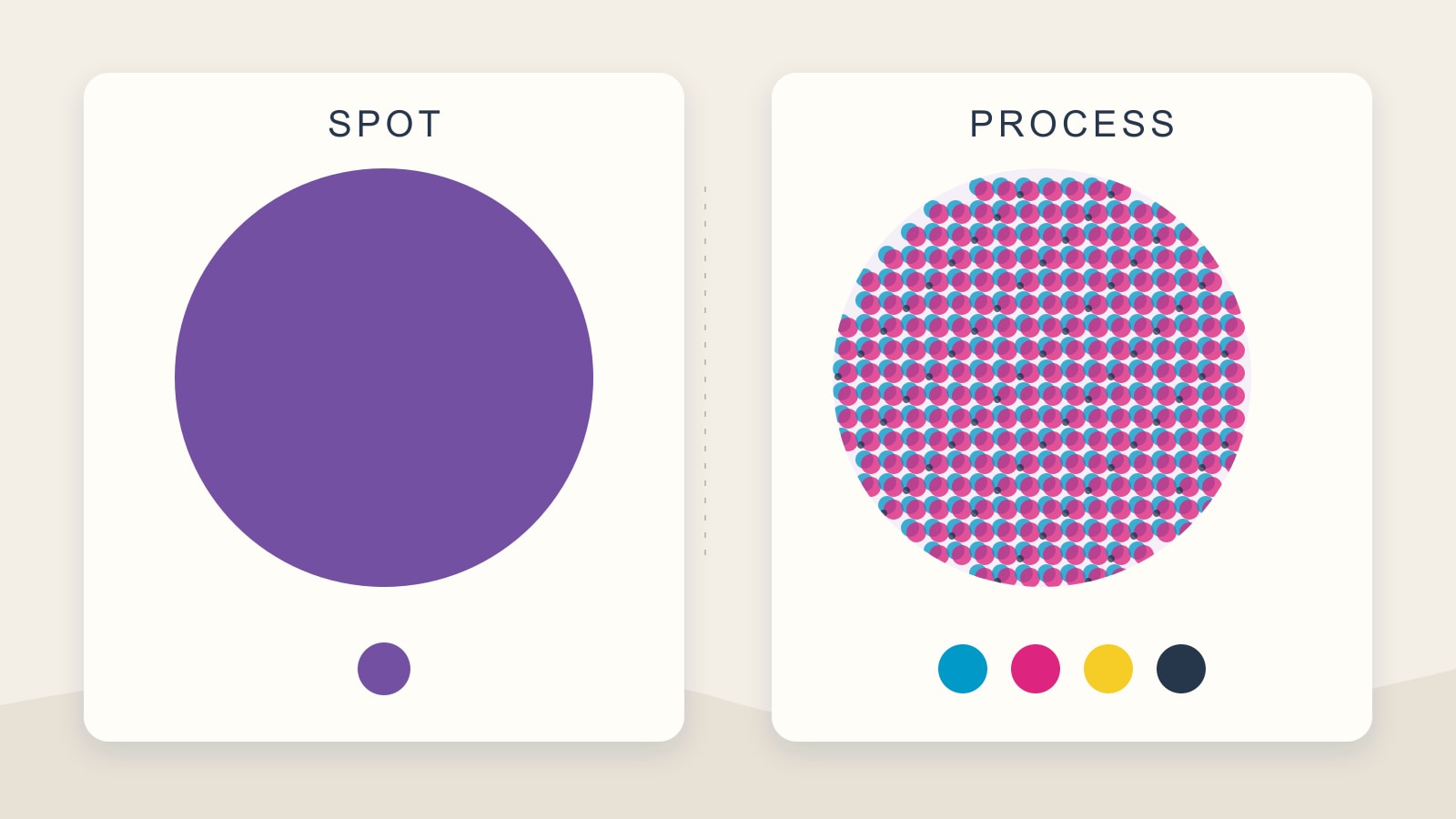
In conventional four-colour process printing, cyan, magenta, yellow and black—CMYK—combine to produce the design’s colours. An individual colour need not use all four. A process purple, for example, can involve several channels even though it reads as one flat shape.
A spot ink is mixed separately rather than constructed only from that process set. Some spot colours fall outside the range a process mix can reproduce. The ink and paper still affect their appearance. Adobe’s explanation of spot and process colours describes both methods and why spot-colour display values are only a simulation.
This is why counting the visible colours in a logo does not settle the production specification. “It is only purple and black” describes its appearance. It does not yet describe the inks.
The colour’s definition matters as much as its name
Imagine a fictional logo called Harbour Circle: a purple circle with a black line of text below it. The designer could prepare the circle as a process swatch or as a spot swatch. Calling either swatch “Harbour Purple” would not explain which route was intended.
Ask the artwork preparer to check the colour type, not just read its label. For the process version, confirm the agreed colour values and output requirements. For the spot version, confirm the exact reference and whether the colour is meant to remain separate. A screenshot cannot supply that information.
Keep the original artwork while those decisions are being made. Do not repeatedly convert it to whatever setting sounds most print-ready: a conversion should have an agreed destination and a reason.
Separations show where the artwork will print
A separation is the artwork assigned to one ink channel. In plate-based CMYK printing there is a plate for each process ink, while a retained spot ink has its own plate. That plate description applies to plate-based printing; confirm how the selected production system handles the channels. Adobe’s Illustrator separation guidance explains the plate-based arrangement and the effect of converting spots to process.
For Harbour Circle, ask the person checking the final PDF to show which channels contain the purple circle. If it is intended as a separate spot, it should be identifiable on that separation. If it has been converted, its contribution appears in the relevant process separations instead.
A useful check is to switch the intended channel off in a separation preview and inspect what disappears. Then inspect each remaining channel. Ask:
- Is the circle on the intended separation?
- Has the black text stayed on the channel agreed for it?
- Are any unexpected spot names present?
- Does the exported PDF still represent the agreed method?
This is a file check, not a colour-match test. It can expose an unintended conversion without proving how the ink will look on the chosen stock. Ask for help with the inspection if your software does not show separations.
A named spot can still be printed with process inks
The next question belongs to the producer: what happens to that named colour when the file is processed?
Fiery’s spot-colour matching documentation gives a concrete example. Its workflow can map a named spot to the closest CMYK reproduction available for the printer and output profile. It can also use an alternative colour definition from the document. That describes a particular processing system, rather than every printer.
The practical distinction is between retaining a named colour in a file and printing a separate ink. Ask which is included in the proposed job. Do not infer the answer from a swatch name, a PDF preview or the word “matching”.
Choose around the job, then agree the colour check
Photographs and designs with many colours are natural candidates for process printing. A small palette with a critical brand reference may justify discussing a separate spot ink. Process artwork and spot inks can also be combined. The feasible choice depends on the production route; it is not a rule that one method is always better.
If a process simulation is the available route, ask to assess that result rather than approving it as though it were the original spot ink. If the difference is unacceptable, discuss a different feasible process, a revised colour or whether the job should proceed. Adding a colour name to the file cannot make an unavailable ink appear.
Separate three approval questions:
- Content and layout: are the words, position and size correct?
- Separations: is the artwork assigned to the agreed channels?
- Physical appearance: what proof or sample, on which material, will support the colour decision?
A soft proof simulates an output condition on a monitor. Adobe’s print-preview guidance explains its dependence on the printer-and-paper profile and its limits from the display and lighting. Ask what a supplied proof actually represents; an ordinary PDF approval is not automatically approval of a physical ink match.
What to send with the artwork
For a business printing enquiry, include the item, quantity, material if known, deadline, original artwork and the colour reference that matters. State whether an existing printed piece is the reference and what it was printed on. Ask the producer to confirm the method and checking route before approval.
You do not have to choose ink settings on your own. The useful instruction is specific: “This purple matters. Please confirm how it will be reproduced and what I should approve.” That gets closer to the real decision than “make it look like my screen”.
Sources and scope
The linked Adobe and Fiery documentation explains colour definitions, separations, one processing workflow and preview limits. Harbour Circle is a fictional example; the checking sequence is editorial guidance. No particular Time for Designs printing method or universal colour match is promised.