
The first page explains the table clearly. The next starts with a row of names and numbers, leaving the reader to remember what each column means. When the pages are separated, that missing context becomes harder to recover.
For a table spanning several Word pages, repeating the column headings is a different task from adding a document title or a page number.
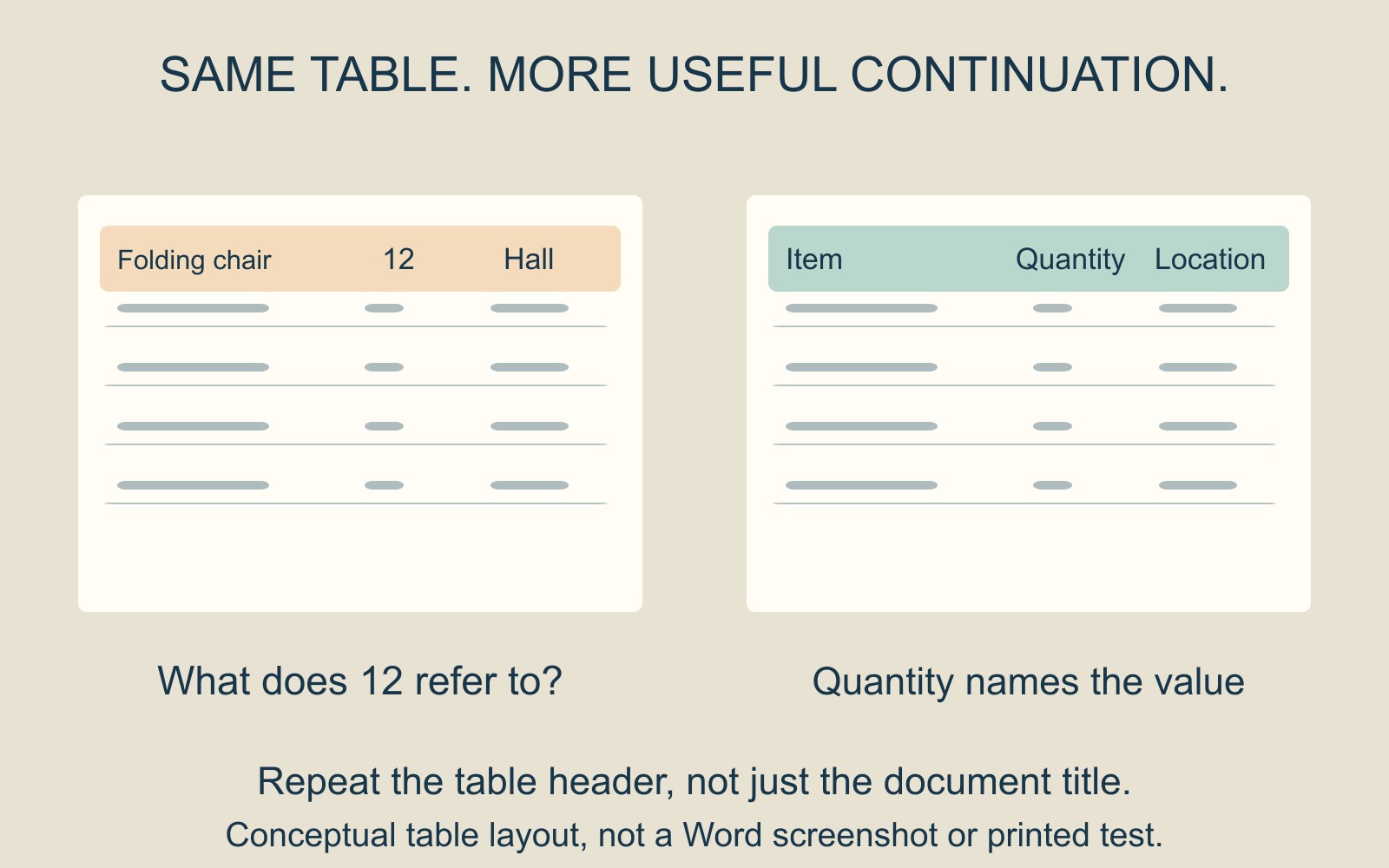
A continuation page needs its own context
Imagine a fictional equipment list with three columns: Item, Quantity and Location. A later page begins with “Folding chair”, “12” and “Hall”. The headings make clear that 12 is a quantity, rather than a room number or an item reference.
A title saying Equipment list helps identify the document, but it does not name those columns. The useful repeated information is the table's header row, positioned above the continuing entries.
This matters when somebody is working from one page beside a stack of equipment. They should be able to read the row without borrowing the first sheet to reconstruct its meaning.
Use the table's repeating-header setting
Microsoft's Word table-header instructions describe selecting the header row or rows, including the table's first row, then choosing Table Layout, Data, Repeat Header Rows.
The guide also gives a Table Properties route: on the Row tab, choose the option to repeat the header at the top of each page. Use the controls available in the Word version being used rather than treating an unrelated screenshot as the specification.
Microsoft notes that the repeated rows are visible in Print Layout or when printing. Check that view before concluding that the setting has failed.
Check the break as well as the heading
Microsoft distinguishes automatic page breaks from a manual page break inserted inside the table: the latter does not repeat the header. If the setting appears ineffective, include that detail when asking the document's author to review it.
The repeated rows are maintained from the first-page header; Microsoft says changes there carry through to the later copies. Avoid treating each continuation heading as a separate label that needs retyping.
Then read a later page on its own. Do the headings still describe the actual entries? If the column's meaning changed during editing, repetition will preserve the wrong wording just as consistently.
Review the supplied version before printing
For document printing and binding, identify the final file, page count and copies required. If supplying a PDF, inspect its continuation pages too; a correct-looking first page is an incomplete proof.
Check column widths and readable type separately. Repeating a heading restores context, but does not make a cramped table easier to read.
Source: Microsoft's Word table-header guide, linked above. The equipment list is fictional; no customer document or software session was tested.