
A table runs over several pages, but one equipment record begins at the bottom of a page and finishes on the next. The problem may be the split within that row, rather than the fact that the table spans pages.
Before shrinking every entry or moving the entire table, identify the unit the reader needs to keep together.
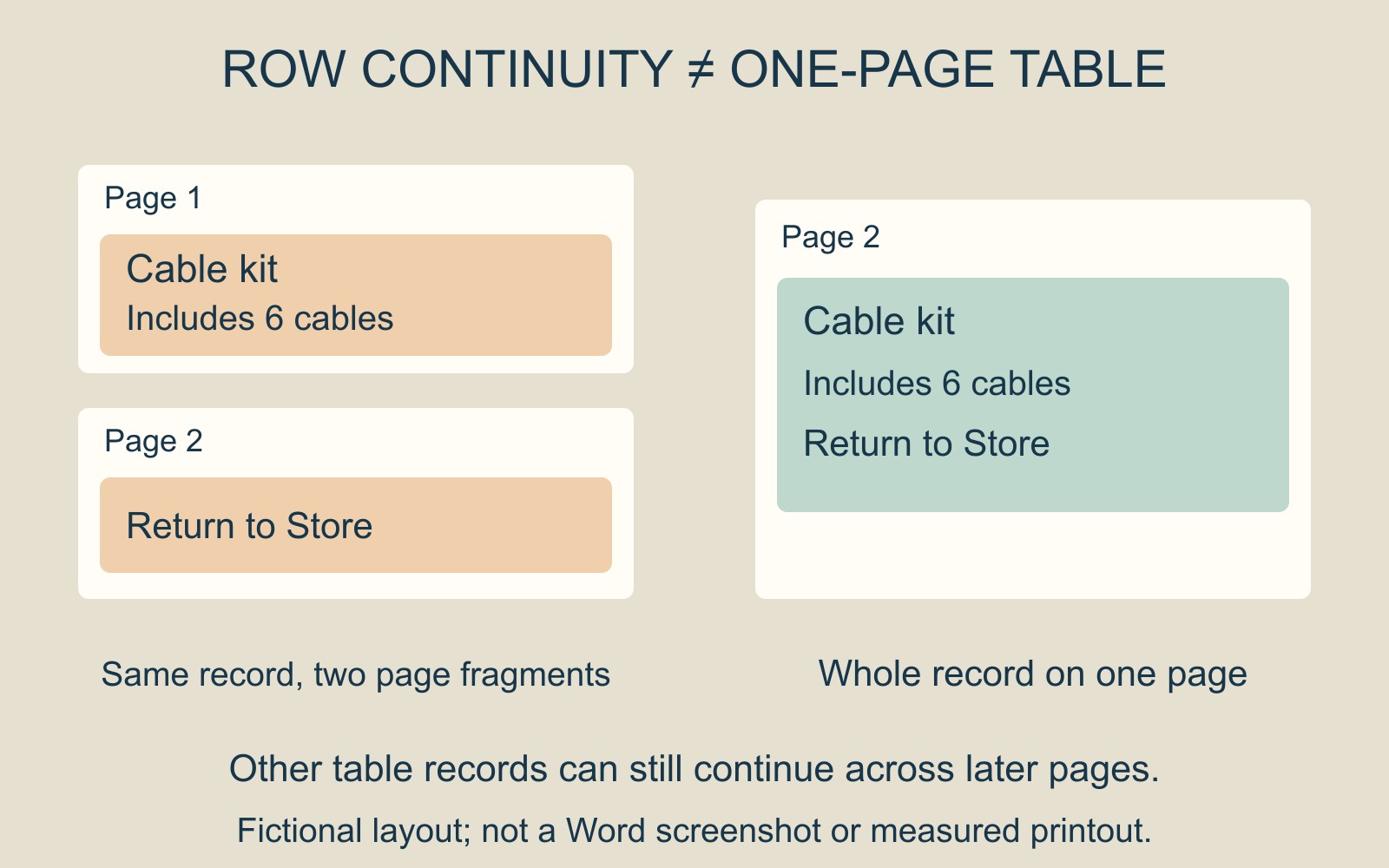
One record and one table are different units
Imagine a fictional equipment record headed Cable kit. Its description says “Includes 6 cables”, followed by “Return to Store”. If the return instruction lands on another page, somebody reading only the first part may miss information belonging to that same item.
Keeping that record together can help without requiring every other record to share its page. A long list may legitimately need several pages.
This is also different from repeating column headings. Headings explain the columns on a continuation page; they do not, by themselves, make a divided record complete.
Word has a row-level pagination setting
Microsoft's Word row-pagination documentation describes a property controlling whether text in a table row may split across a page break. Its example prevents one selected row from splitting during pagination.
For a revision request, identify the affected record and ask the author to review that row's break setting. “Keep the Cable kit record together” describes a narrower change than “keep the table on one page”.
The setting is a layout decision, not a way to create unlimited space. If one record is too large for the usable page area, reconsider its content or layout rather than expecting a checkbox to make it fit.
Judge the space against the reading task
A page with some unused space can be preferable to a record that loses its final instruction overleaf. But do not approve a large gap automatically: check what has moved and whether the resulting page is useful.
Compare the complete record, the nearby entries and the continuation heading. A targeted change should preserve the relationship between the item and its details.
Avoid reducing all the text simply to remove a local gap. That changes readability throughout the document to address one pagination problem.
Review the final supplied pages
For a document printing and binding enquiry, identify the accepted file, page count and copies. If the author supplies a PDF, inspect the affected page boundary in that version too.
The useful proof is the finished reading sequence: the record is complete where the reader needs it, and the remaining table still makes sense.
Source: Microsoft's row-pagination documentation, linked above. The equipment record and diagrams are fictional; no Word file or print output was tested.