
A document circulated for editing may need its revisions visible. The copy handed to readers may need a clean page. Decide which output you want before treating the revision marks on a Word printout as a layout fault.
There are two decisions: whether to print the review marks, and whether the tracked changes in the document have been accepted or rejected.
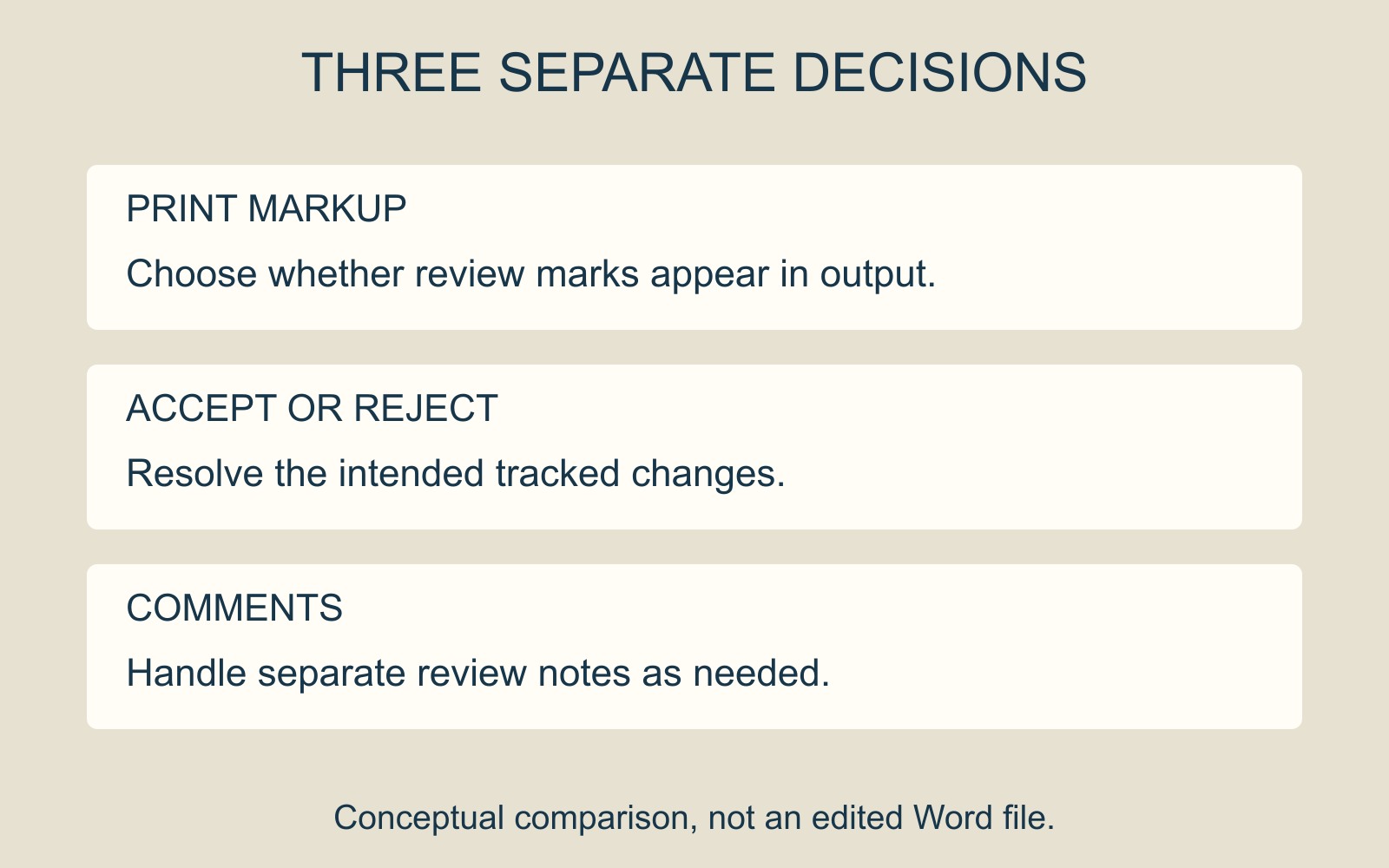
Choose the output you intend to print
Microsoft's Track changes guidance gives a route for hiding tracked changes and comments when printing: File → Print → Settings → Print All Pages, then clear Print Markup under Document Info.
Use the instructions for your desktop version and check the resulting preview. Microsoft's Word for Windows printing guide explains how to move through the preview pages. Look beyond the first page, especially where revisions have affected a paragraph or page boundary.
A clean output view is not an editorial decision
Hiding tracked changes does not remove them from the Word document. Microsoft's tracking guidance distinguishes that display choice from using Accept or Reject to resolve changes. Turning tracking off also does not resolve revisions that are already present.
Suppose a fictional handout changes “Arrival at 9” to “Arrival at 10”. A clean view may show the revised wording without its marks. That does not demonstrate that the person responsible has approved the new time.
Resolve the intended wording with that person. Do not accept every change simply to make the page look tidy. Comments have a separate role too: accepting tracked changes should not be treated as deleting every review note.
Give each file a clear role
Keep an identifiable review copy if it is still needed, and identify the version approved for output. If you supply an exported PDF, open that exact PDF and inspect whether it contains the intended wording and review material.
For a document printing enquiry, say whether the attached file is a marked review copy or the approved clean version. “Print without markup” describes an output preference; “the revisions are resolved” describes the document's editorial state. The handover should make both clear.
Sources: Microsoft's tracking and printing instructions are linked above. The revision example is fictional; no Word document was processed for this guide.