
You reopen a Word letter to prepare another copy, and its date now reads differently. Before approving it for print, establish what that date is meant to record: the letter's agreed date, or the current date when the document is opened.
Those two requirements can look identical on the day a document is created. The difference becomes visible later.
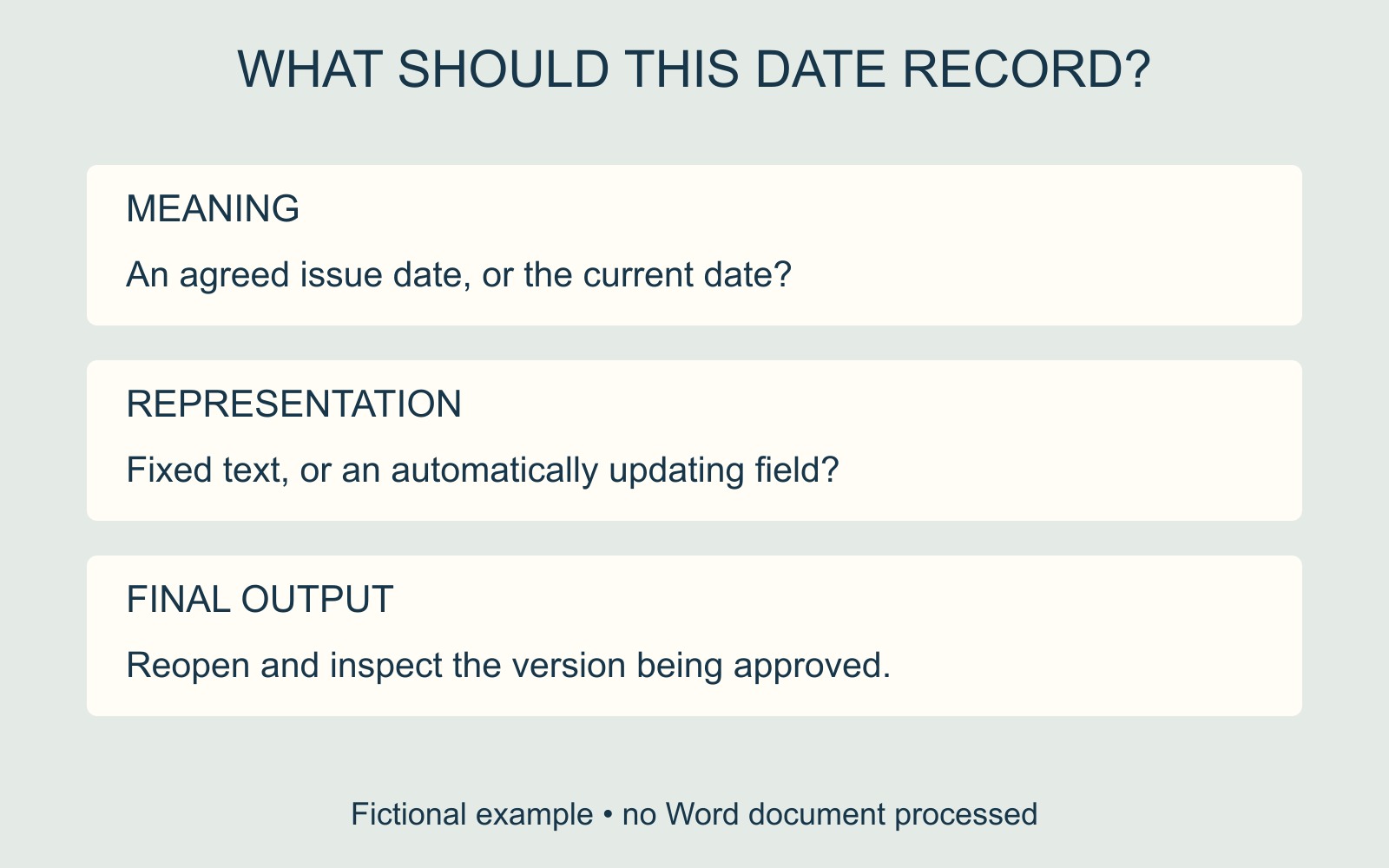
A date can be text or an updating field
Microsoft's guide to inserting dates in Word distinguishes plain date text from a field that updates automatically. In its Date & Time instructions, the Update automatically choice inserts a field.
Microsoft also warns that manually changing that updating date, saving and closing the document does not make the change permanent: the next opening shows the current date. Typing over the displayed result is therefore different from choosing a fixed-date requirement.
This is one possible explanation for a changed date, not a diagnosis of every document. Ask the author to identify how the affected date was inserted.
Name the date's purpose before changing it
In our fictional example, an invitation records 6 May. Reopening the working document on 12 May should not silently make 12 May the invitation's agreed issue date. A reusable daily notice might have a different requirement.
Write that distinction into the correction: “Keep the agreed issue date as fixed text”, or “This position should show the current date when the working document is opened.” Do not ask for an automatic date merely because inserting one is convenient.
Check other date references independently. A letter's issue date, an event date in its text and the date in a filename serve different purposes. Updating one does not confirm the others.
Approve the date in the final output
Keep the original working version and have the author make the intended change. Reopen the revised document and inspect the date again, then check the final PDF or print proof you will actually supply.
When arranging document printing, identify the accepted version and its intended date. A filename containing “final” does not establish that the visible date still matches the approved wording.
Source: Microsoft Support linked above. The invitation dates and diagrams are fictional; no Word file was edited or print-tested for this guide.