A sideways page is awkward to read, so you turn it upright in the PDF viewer. Before sending that file for printing, there is a useful distinction to make: did you change the page, or only your view of it?
A screenshot of an upright page cannot answer that question. The handover needs to identify the saved file and the orientation intended for each affected page.
Rotate View is a viewing choice
Adobe's guide to adjusting PDF views explains that Acrobat's Rotate View changes the view rather than the actual page orientation. That view rotation cannot be saved as a page change.
The same guide describes a separate page-rotation route through Organize Pages for saving rotation with the document. Availability depends on the application and editing access; seeing a viewing control does not establish that you can edit the PDF.
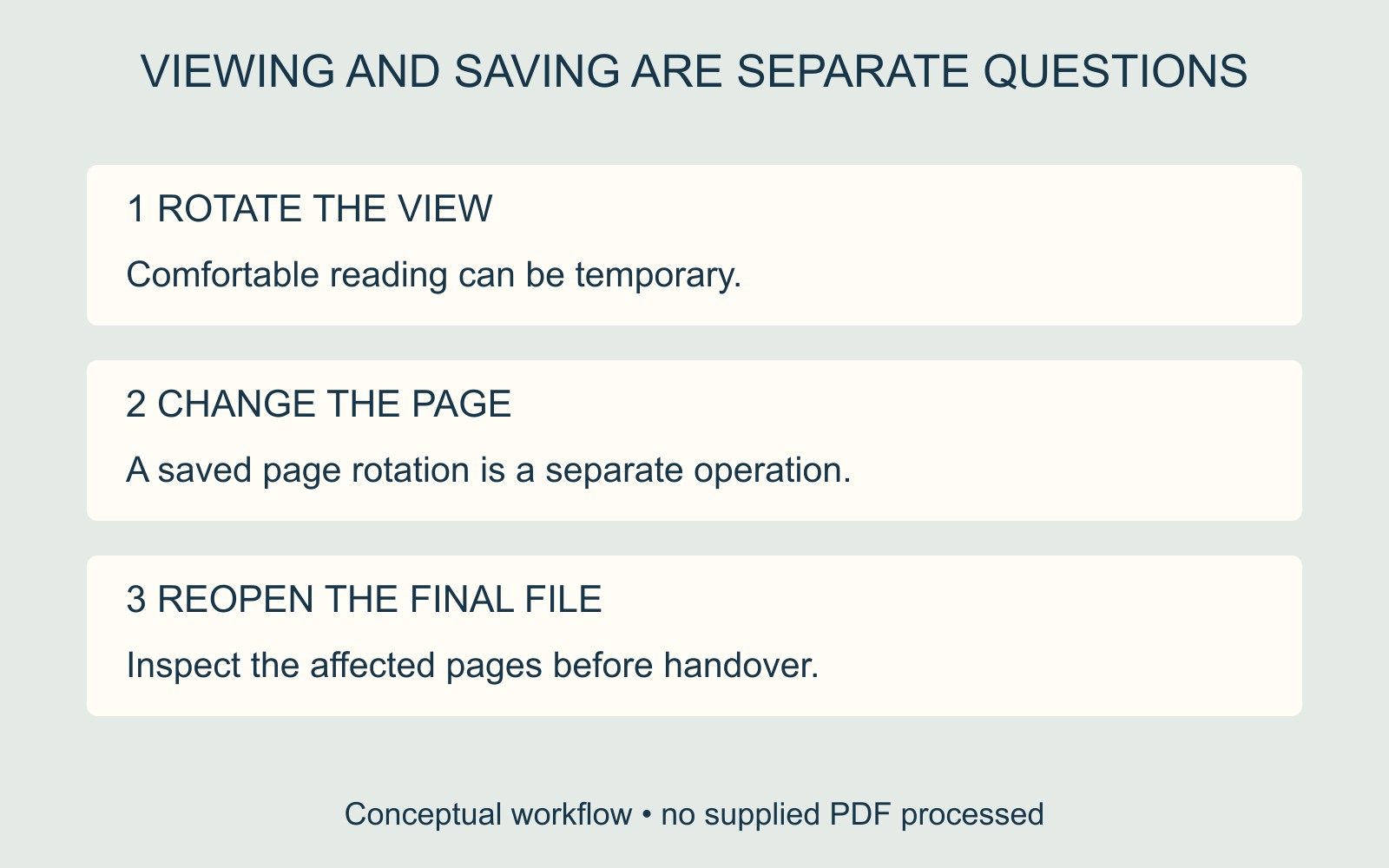
The illustration separates these two intentions. It is a conceptual page map, not a screenshot or evidence that a particular file has been corrected.
Describe the affected pages precisely
“Please turn it round” leaves room for an unwanted change. A landscape chart may be intentionally sideways relative to surrounding portrait text. Identify the page by its position in the PDF and a short content description, then state which edge should be at the top when read.
For example: “The third PDF page, headed Site Plan, should read with the title at the top.” That fictional instruction is more useful than a rotated screen image alone. Keep an untouched original if a corrected version is being prepared.
Page orientation is also separate from which edge a double-sided sheet turns over. Ask about the specific symptom before changing artwork to compensate for a printing setting.
Hand over the final file
If you have editing access, save the intended page change and reopen the final file to inspect the affected pages. Avoid relying on the tab you previously rotated for comfortable reading.
When arranging document printing and finishing, supply that final version and the page-specific instruction. If you cannot save a page change, say so explicitly. That gives the printer a clear correction request instead of an assumption hidden in your viewer.
Source: Adobe Acrobat documentation linked above. The page example and diagrams are illustrative; no supplied PDF was edited or print-tested.