
A photograph looks clear in its original file but softer inside a Word handout. Before replacing the photograph or assuming the printer caused the difference, ask the author to check the document's picture-compression setting.
This is one authoring-stage check, not a diagnosis of every soft image or a promise that changing a checkbox recovers detail.
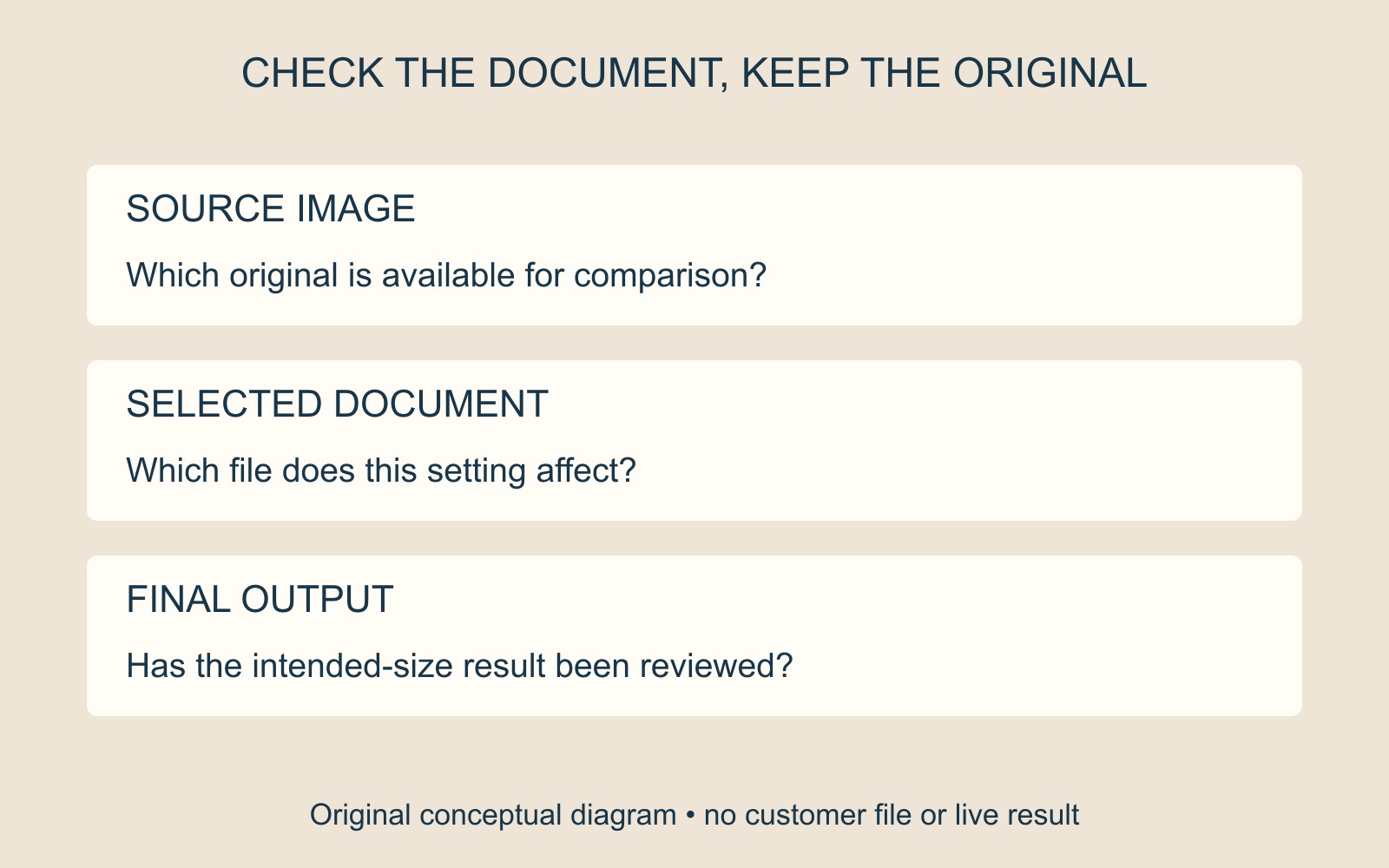
Check the setting for this document
Microsoft's guide to turning off picture compression gives a desktop route through File → Options → Advanced. Under Image Size and Quality, select the intended document and the Do not compress images in file checkbox.
The document selection matters. Microsoft distinguishes that scope from All New Documents, a Word option affecting future documents. Checking one handout does not require changing the rule for everything created afterwards.
Microsoft also notes that uncompressed pictures can produce very large files. Keep the intended quality and the agreed handover route in the same discussion, rather than treating the smallest attachment as the only objective.
Keep the original available for comparison
Retain the original image separately from the Word document. Identify which picture and page prompted the question, and tell the author where the original came from. “The photograph beneath the timetable looks softer than Photo-original.jpg” is a more useful report than “all the printing is blurry”.
Do not treat the compression setting as evidence that an existing placed image now contains its original detail. If the author needs to return to the source, agree the replacement and preserve its intended crop and size.
The original illustrations show a source image and a document containing an image. They do not compare measured quality or show a before-and-after repair.
Review the actual output at its intended size
After the author has reviewed the file, inspect the image in the output being supplied. Check its placement, crop and appearance at the agreed finished size. A larger file alone is not an approval of the result.
For a document-printing enquiry, identify the approved version and whether an original image is available if needed. State the required copies, finishing and date. Keep any uncertainty about the photograph visible before approving the full job.
Source: Microsoft linked above. The filenames and diagrams are fictional; no Word file was edited, image restored or print-quality test performed.