
A supplied photograph looks upright in a preview but sideways on a website. Adding another rotation immediately can obscure the cause. Start by identifying the exact file the page uses and which edge of the subject should face upwards.
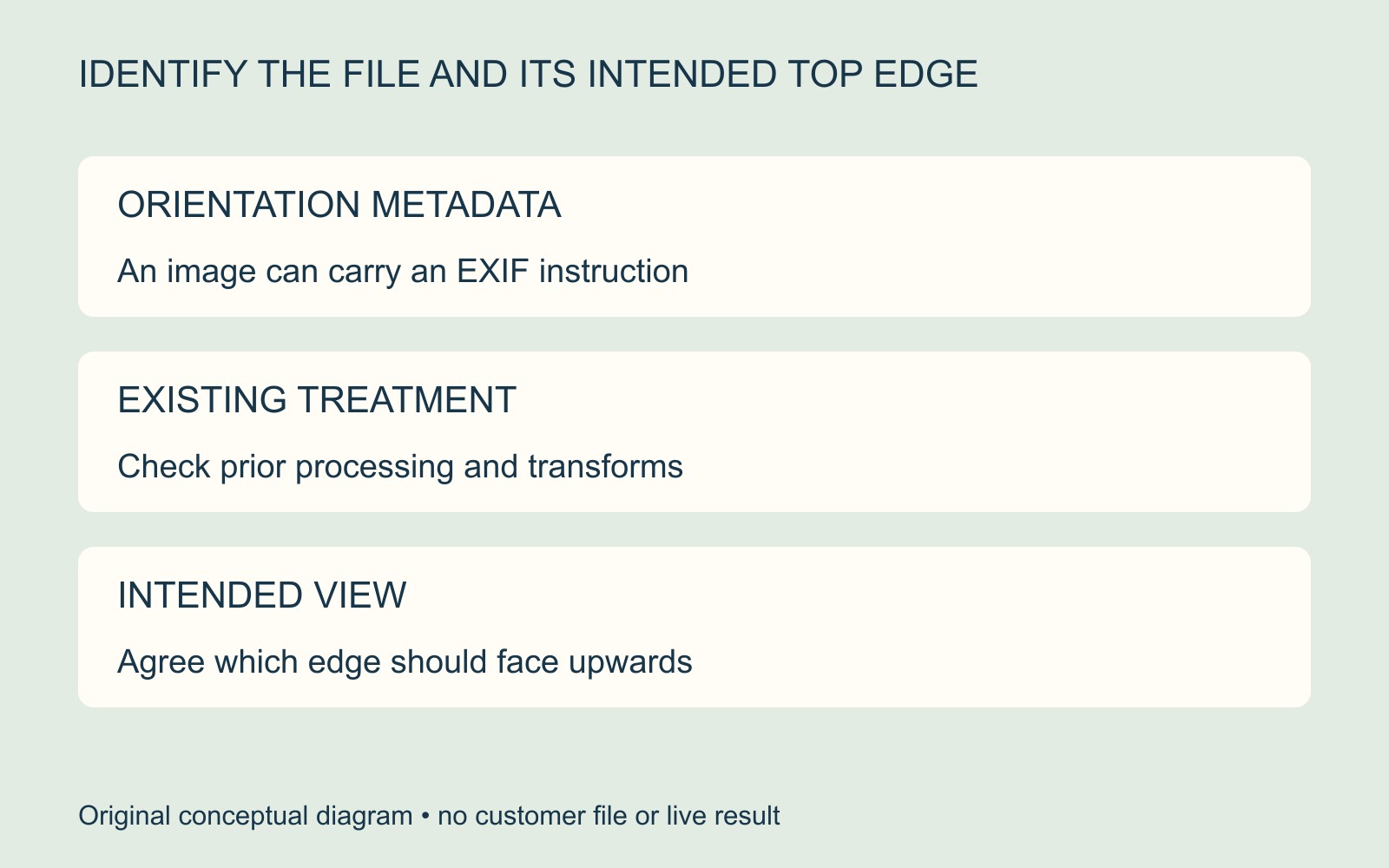
Check the orientation instruction
A photograph can carry an EXIF orientation instruction as well as its image pixels. MDN explains that CSS image-orientation: from-image uses that metadata to orient the image appropriately; it is the property's initial value. This is a mechanism to investigate, not proof that metadata caused this particular problem. See MDN's image-orientation reference.
Give the person maintaining the page the original file, the page address and a screenshot or precise description of the sideways view. Identify an obvious reference, such as “the roof should be at the top”. A filename alone may not distinguish the uploaded original from a processed copy.
Trace changes before rotating again
Ask which image version is actually selected and whether an editor, upload process or page style has already changed its orientation. Keep the original while checking. If two views use different files, comparing their appearance alone does not isolate the cause.
MDN distinguishes orientation correction from arbitrary layout rotation, which uses transforms. It also says orientation is applied before other transforms. That distinction matters when an image already has an additional rotation: adding another rule without checking the existing treatment can make the instruction harder to understand.
Approve the intended upright view
Once the file and its treatment are understood, ask for the affected page view to be shown again with the intended subject upright. Also inspect the visible crop. Correct orientation does not establish that the whole subject fits within its display area.
For a website design brief, record the page, image version and intended top edge together. Keep approval tied to that view, rather than an unrelated thumbnail that happens to look correct.
The original illustration uses a simple landscape symbol to explain orientation. It is not a supplied photograph, application screenshot or verified repair.