
The page is clear enough to read, yet searching for a word you can see returns no result. One possible reason is that the PDF contains a picture of the page without searchable text behind it.
Viewing a document and searching its wording are different uses. If you need both, specify both when arranging the scan rather than relying on the file ending in .pdf.
A page image is not a text layer
Adobe's scanned-document guidance explains the distinction between image data and selectable, searchable text. Optical character recognition, usually shortened to OCR, recognises text in the image and can add a searchable text layer.
That means the visible page and the recognised characters deserve separate attention. A scan can look readable without supporting a useful search. A document with recognised text can still contain recognition errors.
A failed search alone is not a complete diagnosis of every PDF problem. Describe the word you searched for, where it appears and what happened. If selection is restricted or the file behaves unexpectedly, ask the authorised document provider to assess it rather than changing permissions you do not control.
Recognition needs checking against the page
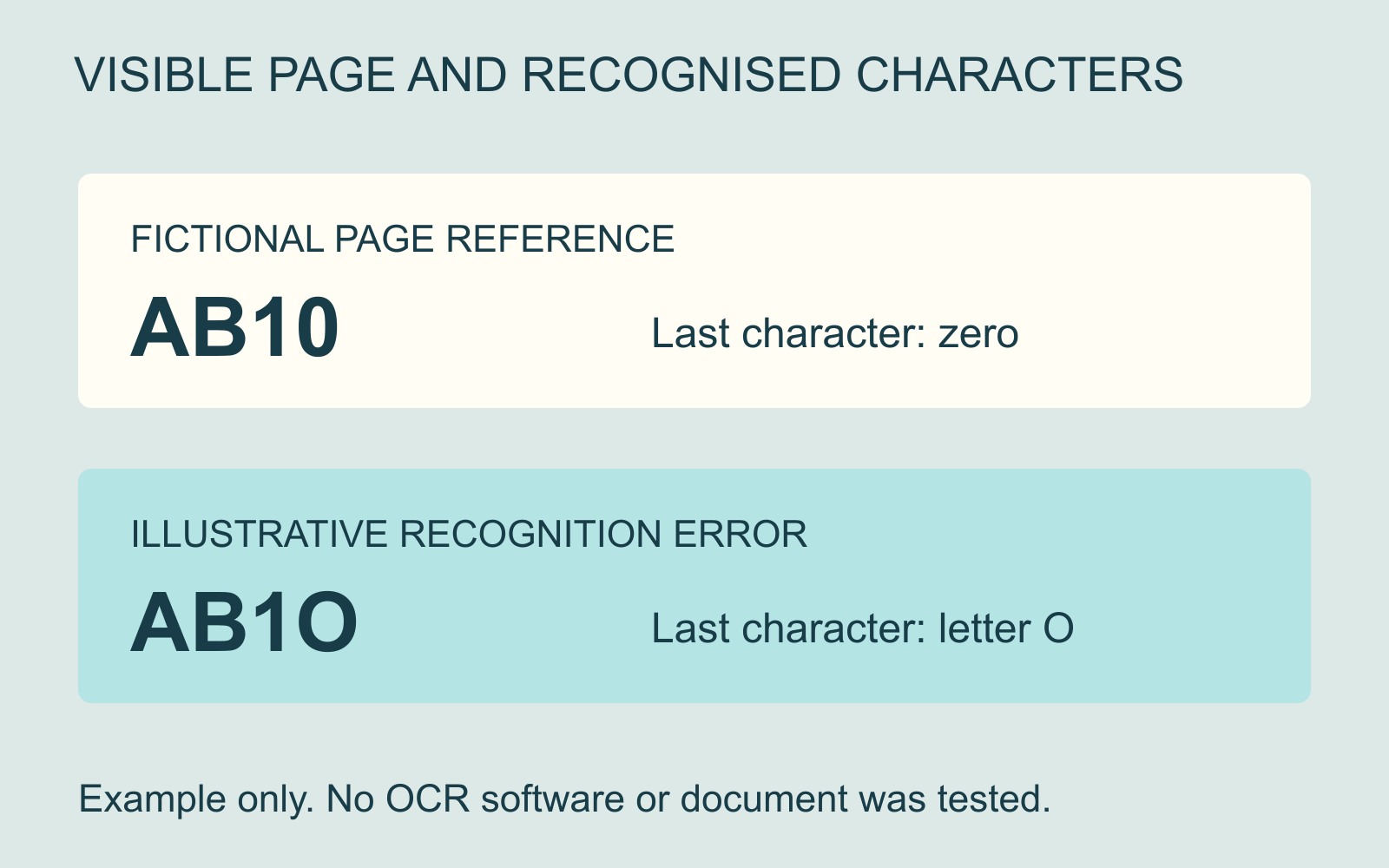
Consider a fictional reference printed as AB10. If a recognised text layer instead contains AB1O, a person looking at the page image might not notice that the final character in the recognised version is a letter rather than a zero.
This is an illustrative comparison, not a recorded software failure. Its purpose is to show why finding some searchable text does not establish that every important character is correct.
Check names, dates, reference numbers and any passages you intend to copy against the visible source. For an important reference, compare the exact characters rather than accepting a result because it looks plausible.
Adobe advises reviewing OCR output for accuracy and completeness. Its workflow also includes selecting the page range and recognition language. Those are relevant processing decisions, not a promise that every document will be recognised correctly.
Keep the original and describe the output you need
Retain the original scan separately from a processed version; Adobe recommends a backup before editing. Give the files clear roles so a later correction does not erase your reference.
When discussing document scanning to a file, say whether you need to view pages, search words or copy text. Include the page count, language, intended use and required format. Ask whether searchable output is available for the job; scanning to PDF alone should not be treated as confirmation of an OCR service.
Agree which details require checking and who will review them. A searchable file can be useful for finding information, but searchable does not mean fully proofread, restored or suitable for every accessibility requirement.
Source: Adobe Acrobat's text-recognition guidance, linked above. The reference-number example and handover suggestions are explanatory; no document was processed or tested for this guide.