You have a PDF made to the agreed dimensions, but the copy from your office printer looks too small. Before enlarging the artwork, separate three decisions: the size of the PDF page, the paper selected for printing and the scaling applied between them.
A file can be correct while a particular printout has been resized. Changing the original to compensate can leave you with a second problem when someone later prints it without that scaling.
Fit and Actual size answer different questions
In Adobe Acrobat’s page-sizing instructions, Fit adjusts a page to the printable area of the selected paper. It can reduce a large page or enlarge a small one. Actual size prints without scaling; material that does not fit can be cropped.
Adobe also distinguishes Shrink oversized pages, which reduces large pages without enlarging small ones, from Custom Scale, where you specify a percentage. These choices are not interchangeable. Their suitability depends on whether the job needs a particular physical size or simply a readable page that fits.
Those are Acrobat’s documented controls. Another application or printer interface may use different labels. Check the controls actually being used rather than following a screenshot from unrelated software.
A small percentage can matter
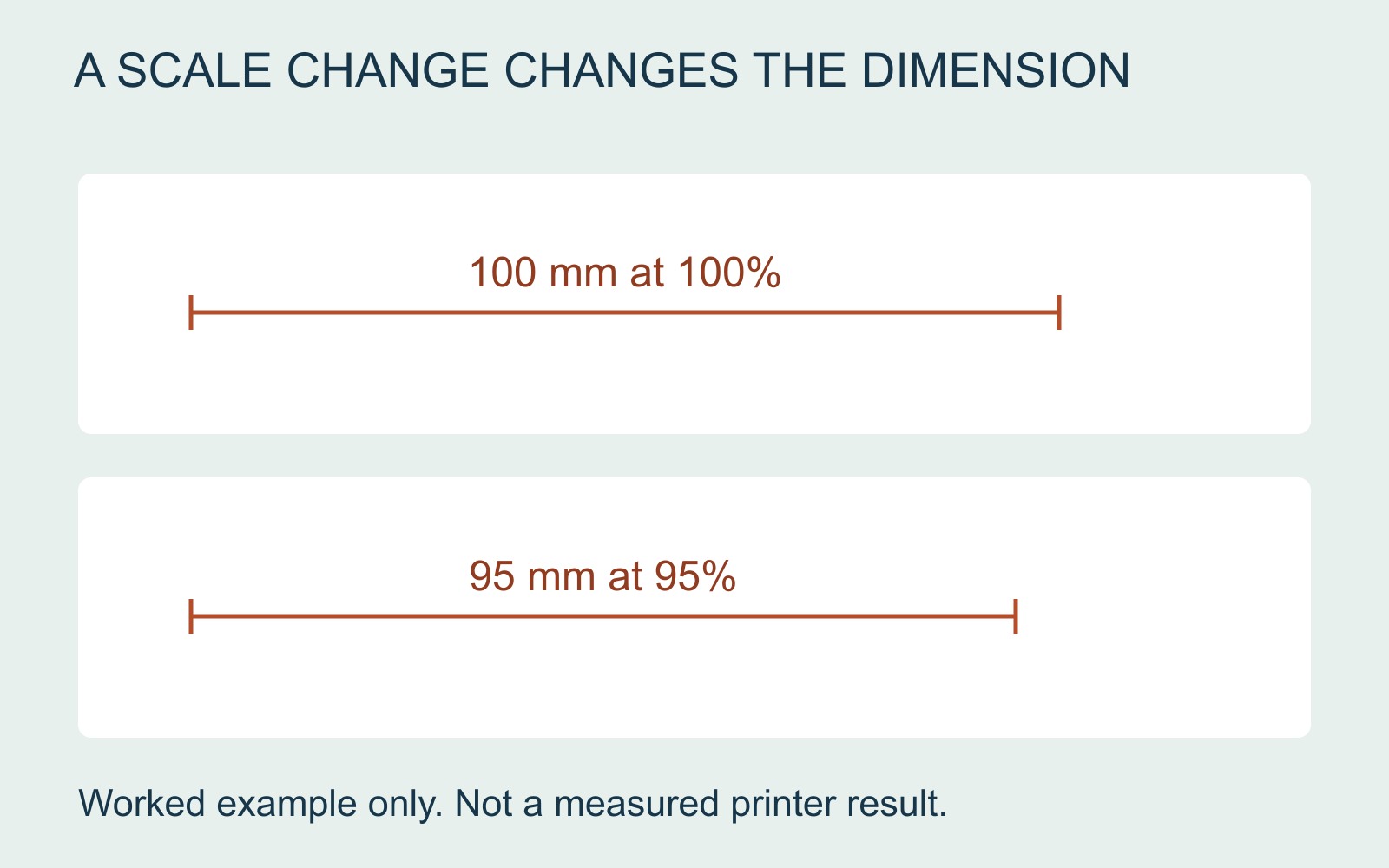
Consider a fictional layout with a line intended to be 100 mm long. At a hypothetical 95% scale, that line becomes 95 mm: 100 multiplied by 0.95. The five-millimetre difference comes from resizing, even though the PDF’s original dimensions have not changed.
This is a worked calculation, not a measured printer result. It explains why an office print can be a useful wording proof while being an unsuitable reference for an exact-size position or fit.
If a piece must fit a holder or align with an existing item, write that requirement down. “Please make it look like this printout” is ambiguous when nobody knows whether that printout was scaled.
Keep fitting and clipping separate
Fit may preserve the whole page by changing its size. Actual size preserves the scale requested in Acrobat but does not promise that every edge will appear on the selected output. Missing edges and reduced dimensions are different observations.
Review the selected paper size and print preview alongside the scaling choice. If the preview indicates that content will be lost, resolve the file and output requirements before treating the print as approved. Do not enlarge the artwork blindly or assume an exact-scale setting provides borderless printing.
Send the intended size, not a compensating guess
For a printing enquiry, supply the original PDF and the required finished dimensions. Say whether your reference copy came from an office printer and identify the application, paper selection and scaling option if known.
Keep the original separate from any resized reference. Agree what the proof is meant to confirm: wording and layout, physical size, or another job-specific requirement. A useful approval states the intended result rather than relying on an unexplained “100%” or a page that happens to fit.
Source: Adobe Acrobat’s page-sizing documentation, linked above. The dimensional example is illustrative; no printer output or universal production tolerance is claimed.