
The updated entries are visible in the worksheet, yet the printed list stops before them. Before shrinking the type or copying everything into a new file, check whether the chosen output area includes those cells.
A worksheet's contents and the range designated for printing are separate things. A saved print area is one possible explanation for a mismatch, rather than a diagnosis of every missing row.
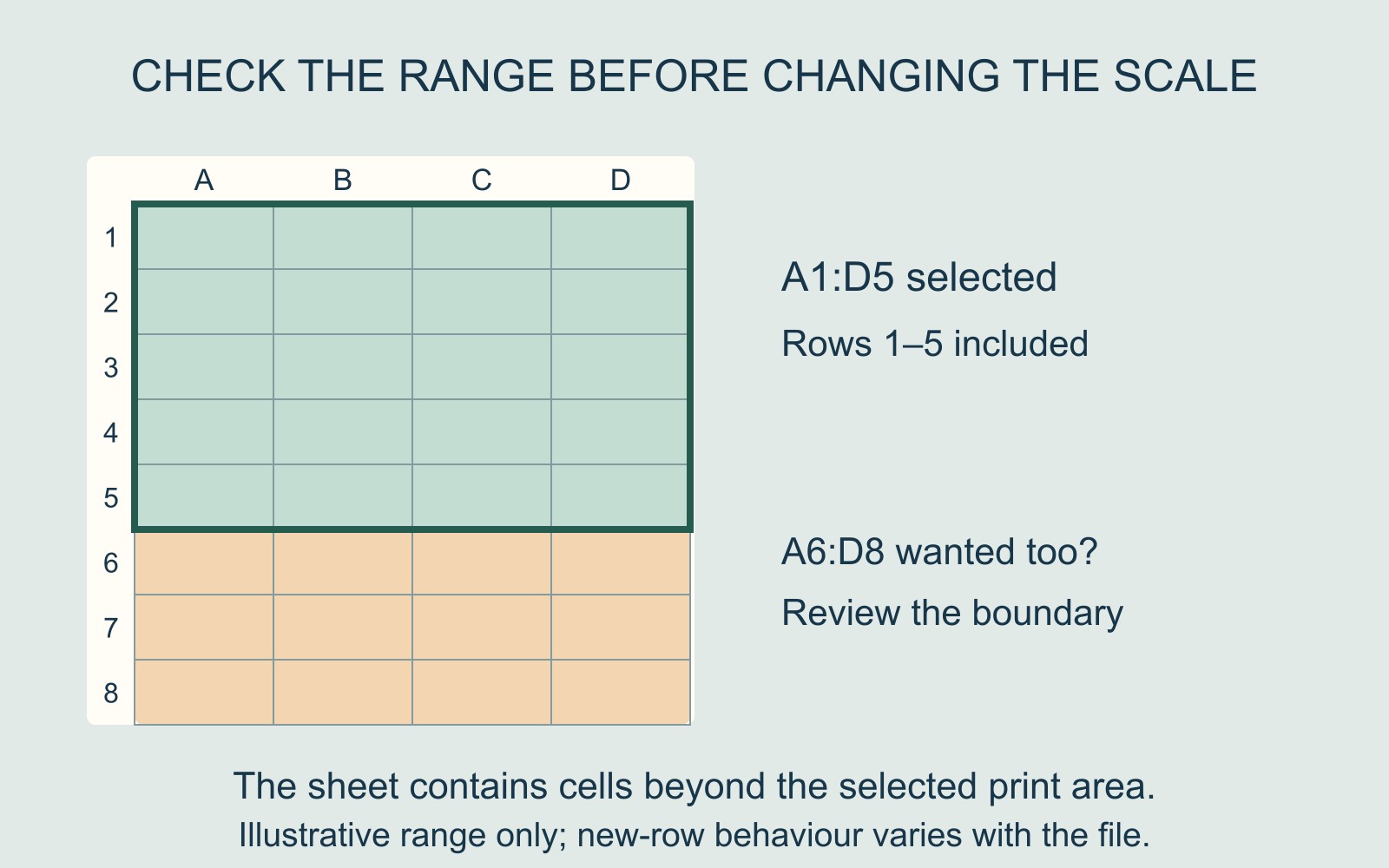
The saved range can describe an earlier list
Microsoft's Excel print-area guide explains that a print area contains one or more selected cell ranges. With an area defined, printing the worksheet outputs that area. The setting is saved with the workbook.
Consider an illustrative sheet where A1:D5 is the defined print area, while rows 6 to 8 also contain entries that the owner wants included. Those later rows sit outside the specified range. Their presence on screen does not mean that this output selection includes them.
This example assumes that fixed range. It does not mean new rows are always excluded, or that every workbook extends its print area in the same way.
Compare the selected area with the intended list
Microsoft identifies Page Break Preview as a way to view the print areas. Compare the boundaries with the first and last required entries, then inspect the resulting print preview.
For the example, the question is whether the intended range ends at row 5 or row 8. “Include the entries in A6:D8 as well” is clearer than “some of the bottom is missing”. Name the worksheet and file version too.
Check whether any headings or explanatory notes belong with the list. Extending the boundary to the last data row can still leave out a separate note that the reader needs.
Extending and clearing have different effects
Microsoft's instructions allow adjacent cells to be added to an existing area. Adding a nonadjacent selection creates another print area, which prints separately. That is worth checking before assuming two selected blocks will share one page.
The guide also explains that Clear Print Area removes all print-area definitions on that worksheet. It clears the output selection, not the worksheet's entries. Review the resulting scope rather than treating the command as an automatic repair.
Choose the content before adjusting its size
Once the required cells are included, assess the page arrangement and readability. Scaling answers how the chosen content fits; it should not be used to guess which content was selected.
When arranging document printing, identify the accepted output file and confirm its complete list, page count and copies. Keep the workbook separate from a reference preview so their roles remain clear.
Source: Microsoft's Excel print-area guide, linked above. Cell ranges are illustrative; no workbook was processed or print output measured.