
A worksheet intended as a simple handout prints the calculation instead of the number its reader needs. Before replacing formulas with typed answers, check whether Excel is displaying formulas deliberately.
A formula, its calculated result and the version chosen for printing have different roles.
Decide what the reader needs to see
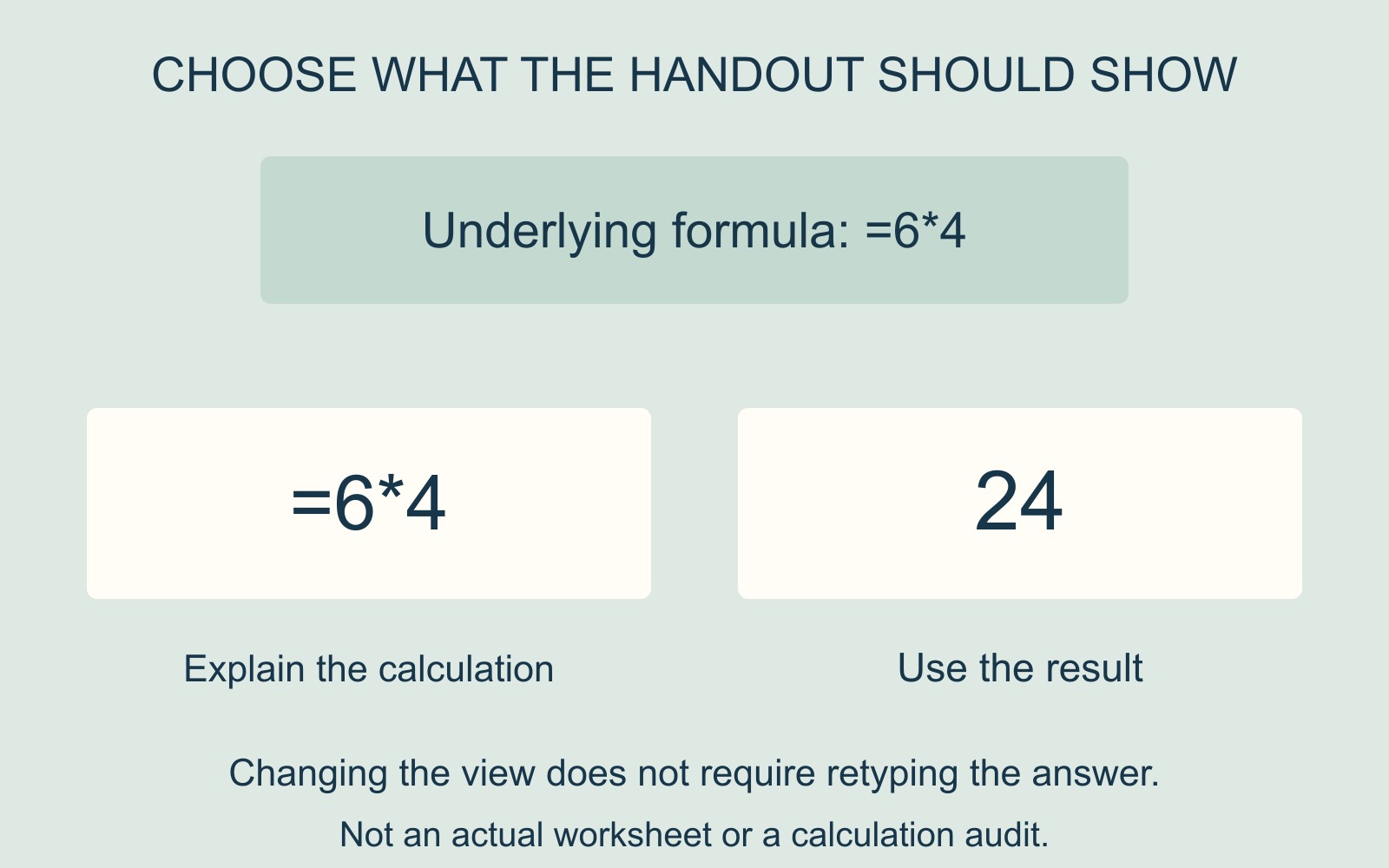
In an illustrative worksheet, =6*4 calculates 24. A working document explaining the arithmetic might need the formula. A finished list of totals might need the result instead.
Neither view is automatically the right handout. The choice depends on whether the reader is checking the method or using the answer.
The example is arithmetic, not a customer quantity, price or report from an actual workbook. Its purpose is to show why replacing the underlying calculation can be the wrong response to a display choice.
Show Formulas changes the view
Microsoft's formula-printing guide describes displaying formulas in worksheet cells and then printing that view. In the desktop workflow, the Formulas tab's Formula Auditing group contains Show Formulas; selecting it again returns to the standard results view.
The guide distinguishes this from the formula bar, which can show a formula while the cell displays its result. Seeing a calculation above the worksheet is therefore different from having every calculation printed in the cells.
Use the documented controls for the application being used. Microsoft's guide directs Excel for the web users to the desktop app for showing formulas in cells and printing them.
A display check is not a calculation audit
If the expected result still does not appear, investigate the actual cell rather than repeatedly toggling the view. Microsoft's formula-troubleshooting guidance distinguishes text-formatted entries and calculation settings among other checks.
Do not treat a plausible-looking number as proof that the formula, references or source data are correct. Equally, visible formula text is not enough to establish that the workbook is damaged.
Report the worksheet, cell and expected role: “This handout should show the calculated total here.” Keep the original workbook so a display question does not become an unnecessary reconstruction.
Approve the output, not just the working sheet
For document printing, identify the final output file and whether its readers need formulas or results. Review the resulting pages for complete columns, readable text and the intended values.
Retain a separate working copy where useful. A calculation can stay available to its author without appearing in every printed edition.
Sources: Microsoft's formula-printing and troubleshooting guides, linked above. No workbook was calculated, converted or printed for this article.