
A report displays two entries as 2 and 2, then shows their total as 5. It looks like an addition error. One possible explanation is that the displayed numbers have fewer decimal places than the values used in the calculation.
Before changing the total, separate the stored values, the rounding policy and the way the printed edition presents them.
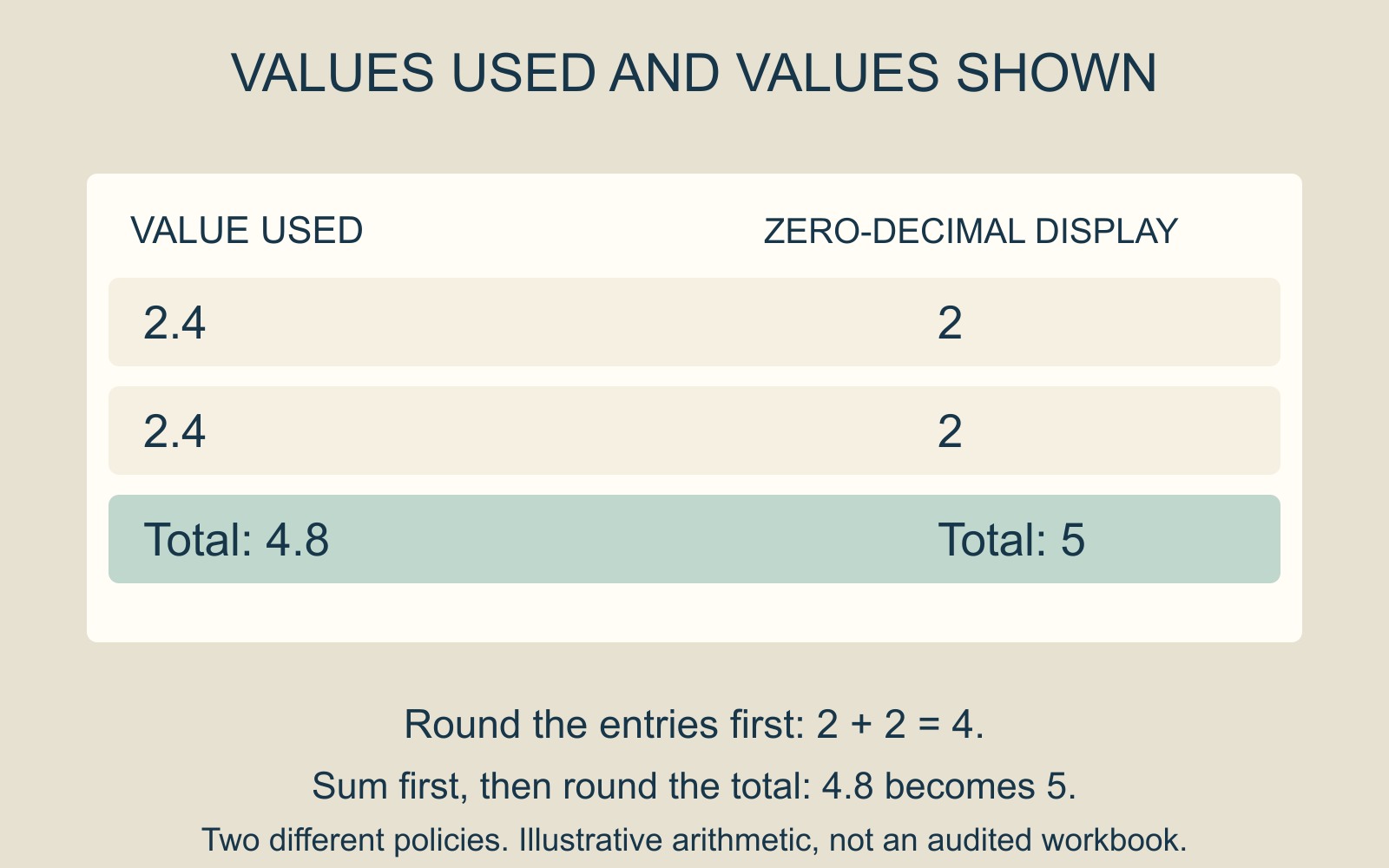
The calculation can use detail the display hides
Microsoft's Excel number-format guide explains that formatting changes appearance without changing the values used for calculations. It also identifies the formula bar as a place to inspect the actual value.
Consider a hypothetical pair of values, 2.4 and 2.4. Their sum is 4.8. If each entry and the total are displayed rounded to zero decimal places, the page shows 2, 2 and 5.
That page has hidden the detail needed to understand the total. The example is arithmetic, not an audited workbook, a financial rule or a report of a customer error.
Rounding the entries first is another policy
If the task instead requires rounding each original entry before adding, the calculation becomes 2 plus 2, giving 4. That is a different calculation from adding 2.4 and 2.4 before rounding the final answer.
The printed layout cannot decide which policy is appropriate. Ask the document's owner what the figures mean and which calculation is intended.
A clearer report may show the relevant decimal places or explain the rounding basis. Neither approach excuses an incorrect formula; it simply makes the intended relationship easier to assess.
Do not confuse display formatting with changed precision
Microsoft's rounding-precision guidance distinguishes Set precision as displayed, which forces values to the displayed precision. It notes that this can have cumulative calculation effects.
That workbook option is not merely a cosmetic way to improve a printed column. Do not change it simply to make an unexplained total look tidier. Keep the original and have the calculation's owner resolve the intended treatment.
Approve an understandable printed edition
For document printing, identify the final output and review its figures as a reader would. Can someone see the precision or explanation needed to understand the total?
A screenshot or PDF can reveal a confusing display, but cannot by itself establish the workbook's underlying values. Request the explanation before replacing numbers or rebuilding the table.
Sources: Microsoft's number-format and rounding-precision guides, linked above. All figures are explanatory; no workbook settings or calculations were changed.