
An Excel workbook contains a Schedule sheet and an Equipment sheet, but the supplied print file contains only the schedule. Before changing cell ranges, check which worksheets were selected for output.
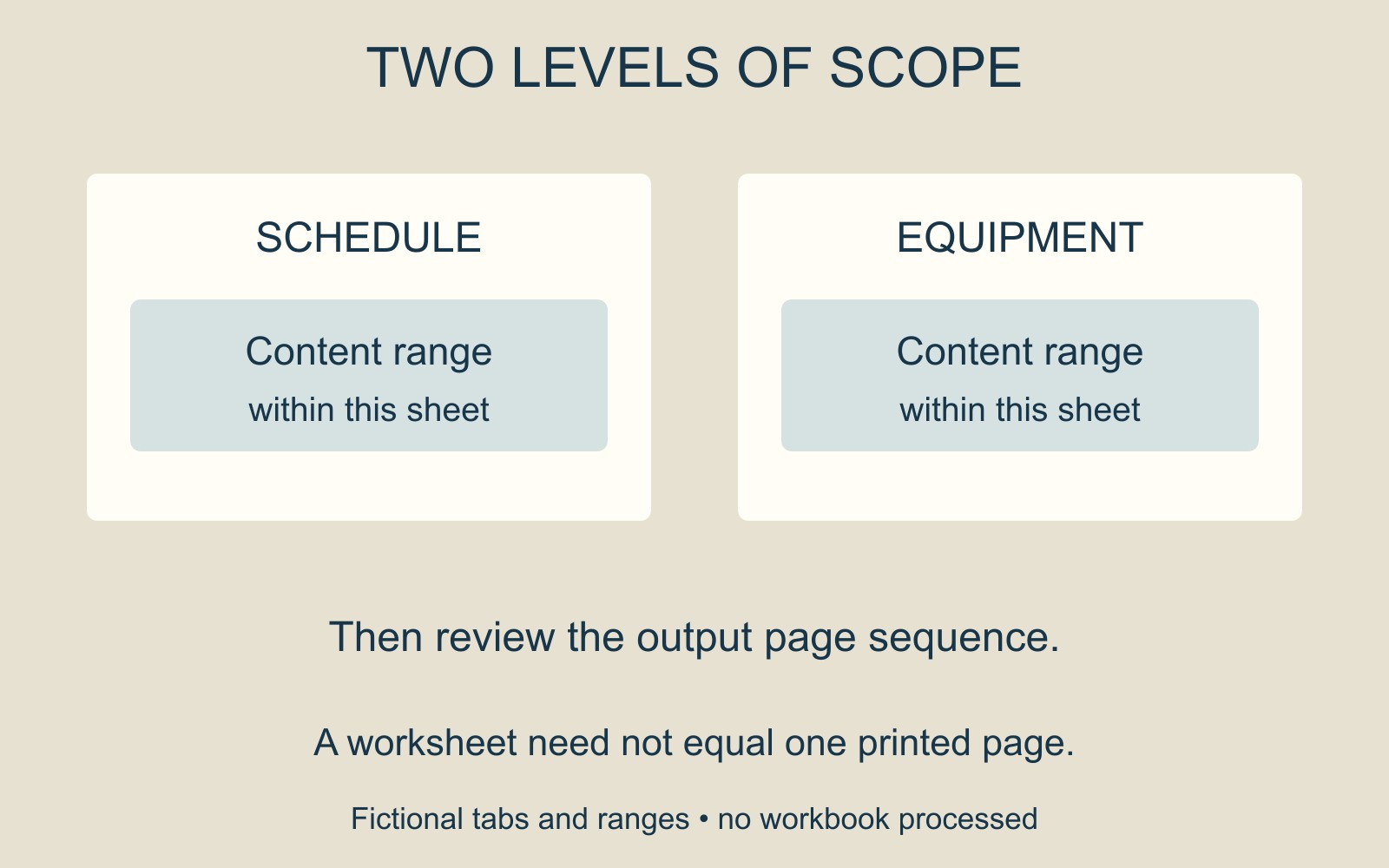
There are two levels of scope: which tabs belong in the pack, and which content belongs within each selected tab.
Name the required worksheets
In this fictional example, the intended pack needs information from both sheets. A complete-looking schedule does not establish that the equipment list is present elsewhere in the output.
Make a short list of the required sheet names and their intended order. Do not assume every tab in the working file belongs in the printed pack. A calculation sheet, a previous version or a separate reference may have a different role.
Use the workflow for your application
Microsoft's worksheet and workbook printing guide describes selecting the worksheets wanted before File → Print in desktop Excel, followed by the appropriate settings.
For Excel for the web, the same guide says that a workbook with multiple worksheets requires going to each worksheet's tab and printing that worksheet. Do not assume that following a desktop route or printing the currently visible sheet includes every required tab.
A missing worksheet and missing cells within a worksheet are different observations. Microsoft also notes that defined print areas can limit output on a sheet. Once the right tabs are accounted for, check their content ranges separately.
Review the resulting pack, not just the selected tabs
Compare the final output with the sheet list: Schedule present, Equipment present, both in the intended order. Then inspect the page boundaries and complete content within each section.
A worksheet is not necessarily one printed page. Confirm the resulting page sequence rather than expecting the page count to equal the number of tabs.
When arranging document printing, identify whether the attachment is the working workbook or the approved output file. If you supply a PDF, open that exact PDF and check the required sections. The useful handover describes the pack someone should receive, not merely the file that contains its source material.
Source: Microsoft's printing guidance, linked above. Sheet names and the pack are fictional examples; no workbook was processed or printed for this guide.