
A worksheet is ready to become a handout, but one cell shows a row of number signs. That display does not tell you what the underlying value is, and it is not a reason to replace the cell with a blank or zero.
Start by separating the cell's content from the space and format used to display it.
Column width is one possible cause
Microsoft's guidance on Excel's ##### display explains that number signs can appear when the column is too narrow. Widening the column can make the value visible.
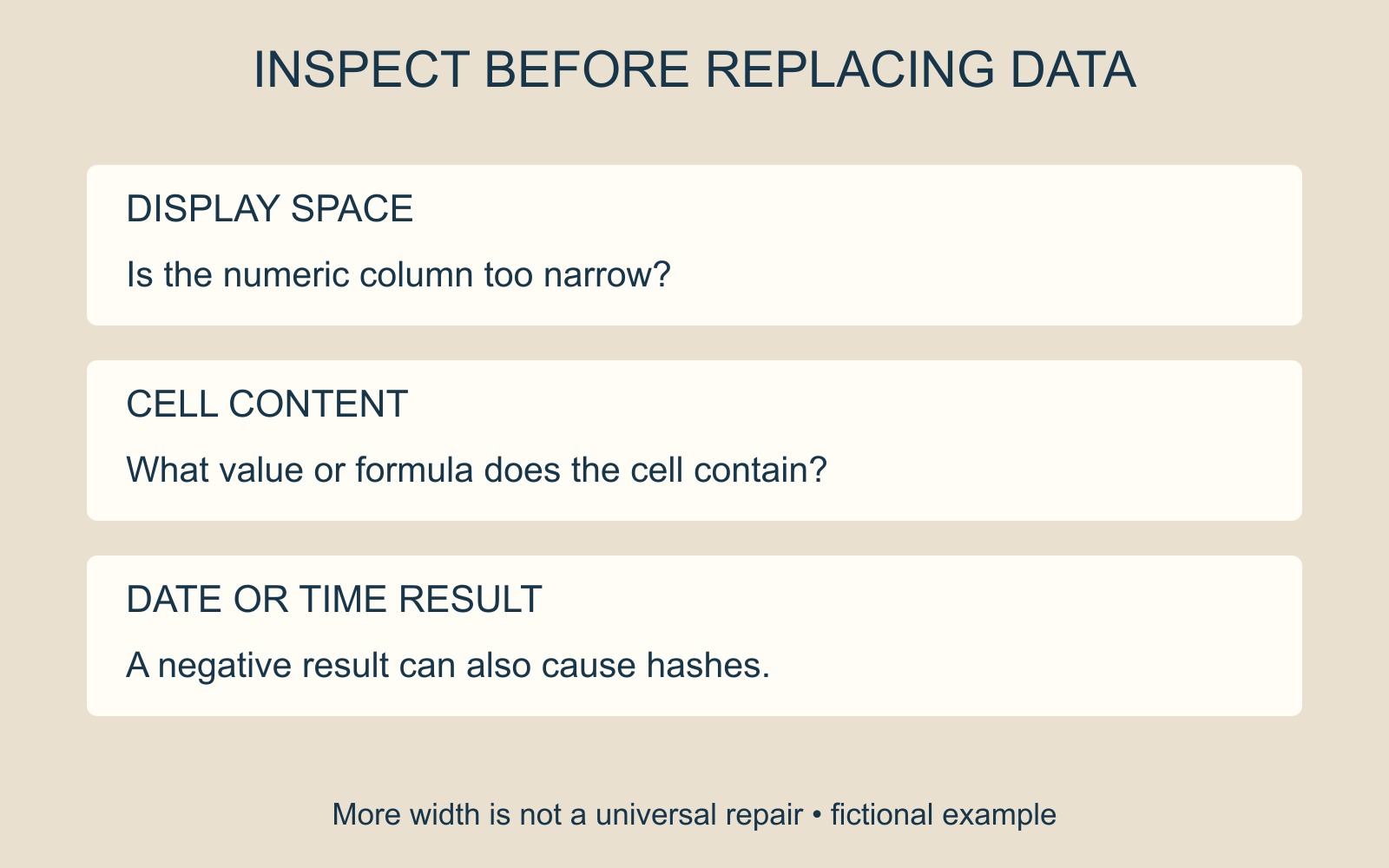
Microsoft also identifies formulas returning negative date or time values as another cause. Widening is therefore a useful first inspection for a narrow numeric column, not a universal repair.
In the fictional diagram, a count of 1250 has too little display space in one column and more space in the other. The illustration supplies the known value for that example; the hashes in your own workbook do not reveal which value is behind them.
Inspect before changing the data
Select the affected cell and inspect its value or formula, number format and available width. If widening reveals the expected number, review whether the wider column still suits the handout.
If the cell represents a date or time and the display persists, ask the workbook author to examine the result and intended meaning. Do not make a negative result positive simply to remove the symptom, or change a date system without understanding the workbook.
Reducing displayed decimal places also changes what a reader sees. It should follow an agreed presentation choice, rather than serve as a quick way to make an unexplained result disappear.
Review the output you will supply
A wider column can affect the surrounding layout. Inspect the final print preview or exported PDF for readable values, headings and page fit after the display change. Check the affected cell in that output, rather than assuming the workbook view settles the printed result.
For printing a worksheet handout, supply the agreed final file. If a cell remains unresolved, give the author its sheet name and cell reference. Keep that issue visible until the value and presentation have been checked.
Source: Microsoft Support linked above. The count and column illustration are fictional; no workbook was calculated or printed for this guide.