You add a sentence to a Word handout and its illustration moves down. That movement may reflect how the picture belongs to the document, rather than a fault that needs repeated dragging.
First decide whether the illustration should follow the surrounding text or occupy an agreed position on the page.
An in-line picture participates in the text flow
Microsoft's picture-wrapping guide explains that In Line with Text puts a picture in a paragraph as if it were text. Its position changes when text is added or removed.
That can be useful. In a fictional instruction sheet, a small illustration may need to stay between the sentence introducing a step and the explanation that follows. Remaining at one fixed page coordinate would be a different requirement.
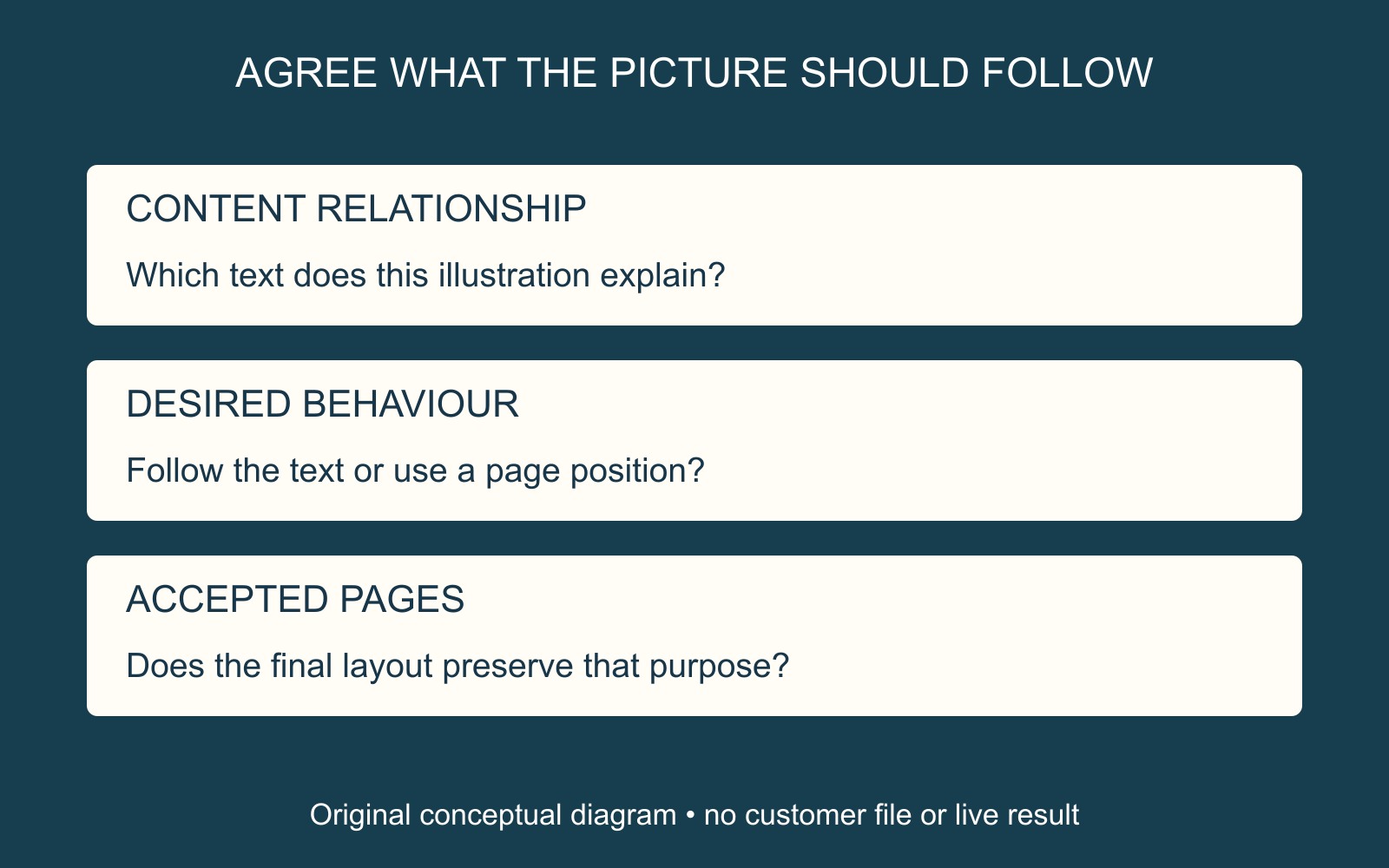
The illustration represents that relationship. It is not a Word interface, an edited document or a demonstration of exact pagination.
Other wrapping options have a different relationship
Microsoft's guide to moving pictures and understanding anchors says other wrapping options associate the object with a paragraph, indicated by an anchor. Its layout guidance distinguishes Move with text from Fix position on page.
A floating picture should therefore not be described simply as “unattached”. Nor should every moving illustration be given a fixed-position setting automatically. Ask the author to inspect the selected picture's Layout Options and the paragraph it belongs with.
Use the guidance for the application version available. The aim is to choose the intended relationship, not to apply one wrapping choice to every image in the file.
Approve the relationship after the wording is settled
Give a specific instruction: “Keep this illustration with step two”, or “Place this decorative mark at the agreed page position”. Those briefs ask for different behaviour.
After the author adjusts the layout, inspect the affected paragraph and neighbouring pages. Check whether the picture still explains the right text and whether that text remains readable. If a final PDF is supplied, review that exact file as well.
For printing a document with illustrations, identify the approved output and any remaining placement question before confirming copies and finishing.
Sources: Microsoft linked beside the relevant explanations. Examples are fictional; no document was edited or printed, and no universal layout or accessibility outcome is claimed.