A black-looking object in an Illustrator preview does not tell you which ink channels its colour definition uses. One specific definition, Registration, has a different role from an ordinary colour choice.
Identify the object's assigned swatch before asking for a darker-looking replacement.
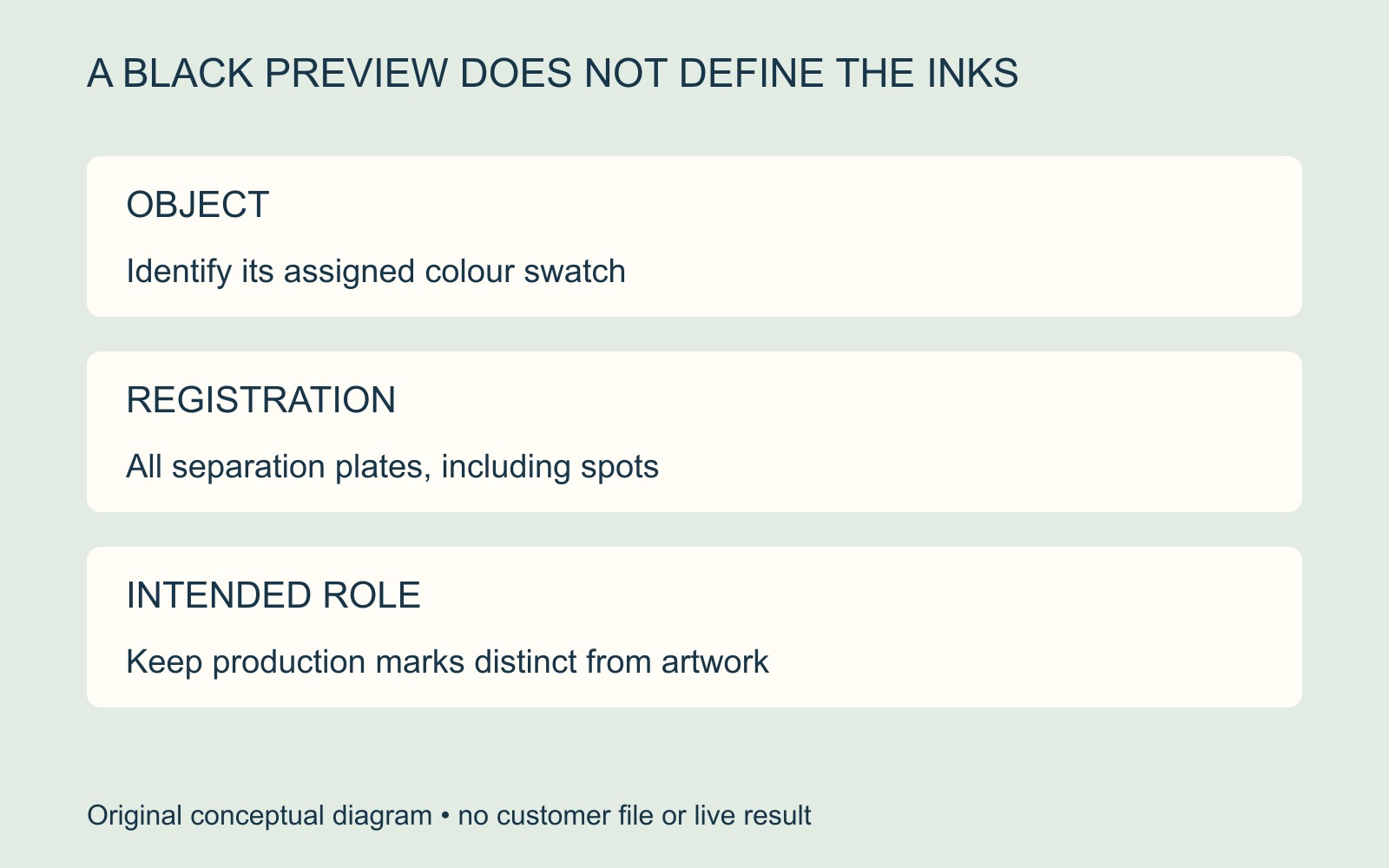
Registration colour has an all-plate role
Adobe's Illustrator colour-separation guide describes Registration colour for objects intended to print on every separation plate, including spot-colour plates. Such objects appear black on screen but use an equal tint of all inks on the separations.
The black preview therefore does not mean “black ink only”. The relevant distinction is the object's colour assignment and intended output role, rather than how dark the small preview looks.
This explains that Illustrator definition. It does not establish which production system a provider will use or predict a physical result from an unidentified supplied file.
Separate a deliberate mark from ordinary artwork
In a fictional leaflet, a preparer notices a black-looking heading on every separation. Ask them to identify its assigned colour and explain whether that all-plate behaviour is intended.
A registration mark deliberately added for a production purpose is a different object from the leaflet's ordinary heading. Do not replace every Registration-coloured object across the document simply because one heading needs investigation.
Give the preparer the exact page and object, the approved appearance and the intended role. Keep the original while the appropriate colour definition is agreed. There is no universal replacement mixture supplied by this article.
Review the corrected file as well as its preview
After an agreed correction, have the responsible preparer confirm the object's channel assignment in the output file. Check the visible design too, so a technical adjustment does not silently become a different approved appearance.
For a printing enquiry with a colour-separation concern, send the actual available artwork and identify the affected object. A screenshot can explain where the question is; it cannot establish the underlying swatch or separation data.
Source: Adobe linked above. The heading and diagrams are illustrative; no artwork, separation output, press or ink result was tested.